

ALFRENSIA CREATOR GUIDE · 8 MIN READ
Choosing a workstation PC for video editing and 3D rendering starts with the applications, project sizes and delivery requirements you actually use. Video editing, compositing, modelling, simulation and final rendering can stress different parts of the system, so the right balance depends on the workflow.
Start with your actual workflow
Before choosing components, list the software, footage formats, project sizes, plugins, render engines, and typical delivery resolutions you use. A workstation for basic 1080p editing is not the same as one for multi-camera 4K or 8K footage, complex compositing, heavy colour grading, simulation, or GPU rendering.
- Video editing: codec support, timeline playback, effects, export settings, and media cache can all affect performance.
- Motion graphics and compositing: RAM capacity, CPU performance, GPU acceleration, and project complexity may all matter.
- 3D modelling: interactive viewport performance and scene complexity can be more important than final-render speed.
- GPU rendering: check the render engine’s supported GPU architecture, memory requirements, and scaling behaviour.
- Simulation and CPU rendering: sustained CPU throughput and memory capacity can be major factors.
CPU: match the processor to the application
CPU performance can affect timeline responsiveness, certain effects, simulation, compilation, and CPU-based rendering. But more cores do not guarantee a proportional improvement in every application. Some operations use many threads well; others depend on single-thread performance, hardware decoding, or a GPU-accelerated path.
Compare independent benchmarks for your exact software and workflow. If you mainly edit a particular codec, look for tests using similar footage and export settings rather than relying on a general CPU ranking. Confirm that the processor, motherboard, memory, and cooling form a compatible platform.
For specialised GPU rendering or other accelerated workflows, compare the software’s supported hardware and the actual memory requirements. A workstation-class option such as the NVIDIA RTX PRO 6000 Blackwell 96GB is an example of a professional GPU category—not a default recommendation for every creator.
GPU: acceleration and VRAM are workload-specific
A GPU can accelerate supported effects, colour operations, AI tools, viewport rendering, and some final-render engines. The benefit depends on the software and the exact features used. Check the software vendor’s current hardware-acceleration and GPU-rendering documentation.
VRAM capacity matters when the scene, textures, effects, or model fit depends on available graphics memory. If the workload exceeds the usable memory, performance or workflow options may be affected. More VRAM does not automatically make every effect faster, and GPU compute performance also matters.
For example, before selecting a graphics card for a 3D render engine, confirm that the engine supports that GPU and that the scene fits its memory needs. For video editing, check the codecs, effects, and acceleration paths used by your editor. Avoid choosing solely from a gaming FPS chart if your main workload is professional software.
RAM: plan for projects, not just the operating system
Memory requirements can rise with large timelines, high-resolution media, multiple applications, large 3D scenes, simulations, and virtual machines. Measure memory use during the real workload and consult the software’s current requirements. A workstation used for light editing may need far less memory than one handling large compositing projects or complex scenes.
Choose a motherboard and memory configuration that support the capacity you need now and a realistic upgrade path. Confirm DDR4 or DDR5 compatibility, supported module configurations, and the manufacturer’s memory guidance before buying.
Storage: separate speed from capacity
Storage needs depend on the source media, project cache, scratch files, assets, and archive strategy. A fast NVMe SSD can help with some media and project workloads, while a larger secondary drive may be more cost-effective for completed projects or source files that do not need the fastest access.
Check sustained performance, capacity, endurance rating, warranty, and motherboard slot support. A drive’s advertised peak sequential speed does not predict every real-world task. Maintain a separate backup of important project files; an SSD is not a backup strategy.
Cooling, power, and case selection
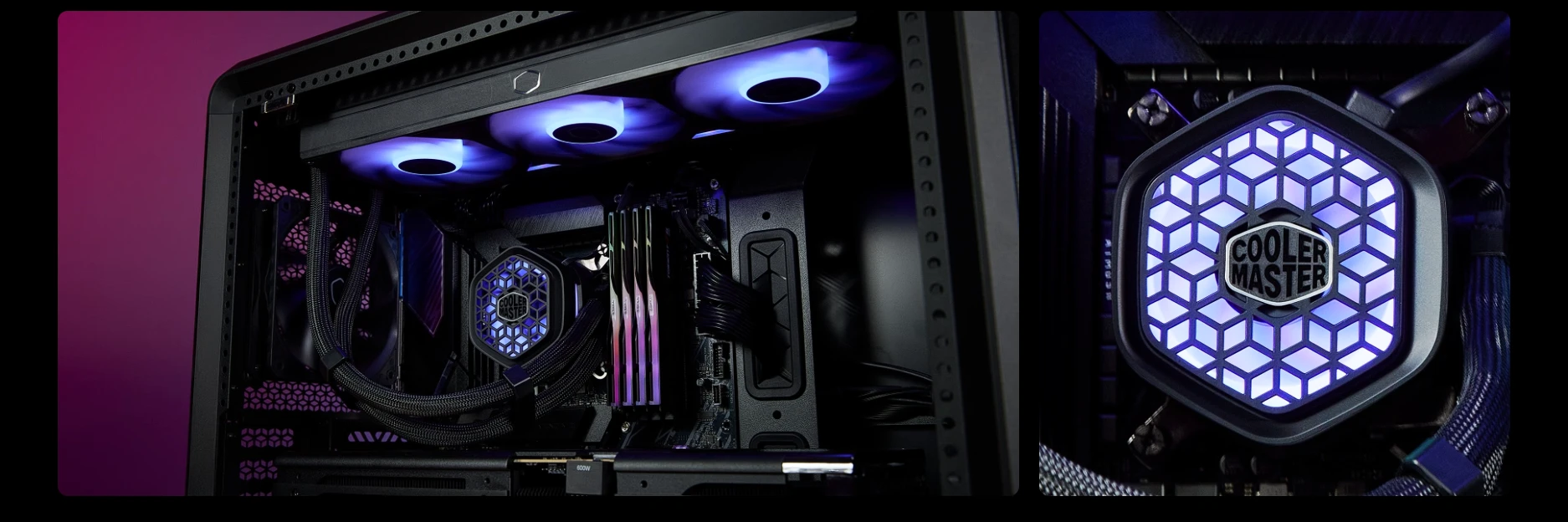
Long renders and sustained workloads can keep the CPU or GPU busy for extended periods. Choose cooling based on measured performance for the exact processor, noise preferences, case airflow, and mounting compatibility. A workstation does not automatically require an AIO liquid cooler; a suitable air cooler can be appropriate for many builds.
Choose a reputable PSU that meets the exact GPU and complete-system requirements. Check connectors, card dimensions, case clearance, cooling layout, and the PSU manufacturer’s documentation. Workstations with several drives, high-power GPUs, or multiple expansion cards need careful whole-system planning.
Display and connectivity
For colour-critical work, consider the monitor’s resolution, colour gamut, calibration options, uniformity, brightness, connectivity, and the requirements of your delivery workflow. Do not assume a product’s “HDR” label or a wide-gamut claim alone proves that it is suitable for colour grading.
Also check card-reader needs, external storage, USB bandwidth, network speed, audio interfaces, capture devices, and the number of displays. These features can affect daily productivity as much as a small component performance difference.
How to choose a balanced workstation
- Identify the applications and the tasks that consume the most time.
- Find current official hardware requirements for those applications and plugins.
- Compare independent benchmarks that use similar project files and settings.
- Choose the CPU and GPU according to measured workload needs.
- Size RAM for real project and multitasking requirements.
- Plan storage capacity, cache, and backups.
- Verify motherboard, BIOS, memory, PSU, cooler, and case compatibility.
- Include the monitor, peripherals, and any licences in the total budget.
Common workstation buying mistakes
- Buying a gaming-focused GPU without checking software support and VRAM requirements.
- Assuming more CPU cores accelerate every editing task.
- Spending on the fastest SSD while leaving too little project capacity or backup storage.
- Choosing RAM without checking the motherboard’s memory generation and support list.
- Ignoring sustained thermal behaviour and noise during long renders.
- Using gaming benchmarks as the only evidence for a professional workload.
Frequently asked questions
Is a gaming PC also suitable for video editing?
It can be, if its components, memory, storage, and software support meet the editing workflow’s requirements. The word “gaming” does not guarantee suitability for every codec or professional application.
Does 3D rendering always need a powerful GPU?
No. The best hardware depends on whether the workflow uses GPU rendering, CPU rendering, simulation, or interactive modelling. Confirm your render engine’s support and benchmarks.
How much RAM does a workstation need?
It depends on the software, project size, and tasks running simultaneously. Check the application requirements and monitor actual usage during representative work.
Should I prioritise CPU or GPU?
Prioritise the component that improves your main tasks according to credible, relevant benchmarks. Some workflows benefit from both, while others are dominated by a specific operation.
Official software resources
- Adobe Premiere Pro — system requirements
- Blender — hardware requirements
- DaVinci Resolve — technical specifications
Hardware needs change with software versions, codecs, plugins, and project complexity. Verify the current requirements for the tools you use before purchasing.
دليل اختيار Workstation للمونتاج والرندر ثلاثي الأبعاد
اختيار workstation لازم يبدأ بالبرامج وحجم المشروعات ومتطلبات التسليم الفعلية. المونتاج والـcompositing والنمذجة والمحاكاة والرندر النهائي ممكن يضغطوا على أجزاء مختلفة من الجهاز.
ابدأ بسير العمل الحقيقي
حدد البرامج والإصدارات ودقة الفيديو وحجم المشروعات والمؤثرات والخامات وزمن التسليم المتوقع قبل اختيار القطع.
CPU: اختار المعالج حسب البرنامج
بعض المهام تستفيد من أنوية أكثر، وأخرى تعتمد على أداء النواة أو تسريع خاص. راجع اختبارات نفس البرنامج ونفس نوع الحمل.
GPU: التسريع وVRAM حسب الحمل
تأثير كارت الشاشة وذاكرته بيعتمد على البرنامج والمؤثرات وحجم المشهد. ما تفترضش إن كل رندر محتاج نفس الـGPU؛ راجع متطلبات البرنامج.
RAM: احسب حساب المشروعات
المشروعات الكبيرة وتعدد التطبيقات ممكن تحتاج ذاكرة أكثر من الاستخدام المكتبي العادي. راقب متطلبات ملفاتك والبرامج قبل تحديد السعة.
التخزين: فرّق بين السرعة والسعة
خطط لسعة ملفات المصدر والمشروعات والكاش والتصدير والنسخ الاحتياطية. وحدة أسرع مفيدة في أحمال معينة، لكن السعة والتنظيم مهمان أيضاً.
التبريد والطاقة والكيسة
اختار تبريداً مناسباً للحمل الطويل، وPSU بجودة وقدرة وتوصيلات مناسبة، وكيسة تستوعب القطع وتوفر تدفق هواء جيداً.
الشاشة والتوصيلات
راجع الدقة ودقة الألوان والمنافذ المطلوبة والأقراص الخارجية والشبكات والأجهزة الطرفية المستخدمة في سير العمل.
إزاي تختار workstation متوازنة؟
- حدد البرامج والمشروعات الفعلية.
- راجع متطلبات البرامج الرسمية.
- وازن CPU وGPU وVRAM والرام حسب الحمل.
- خصص سعة كافية للتخزين والنسخ الاحتياطي.
- راجع الطاقة والتبريد والتوافق.
- قارن اختبارات واقعية للتطبيقات المستهدفة.
أخطاء شائعة في شراء workstation
- اختيار القطع بالاسم أو السعر فقط.
- افتراض أن كل برامج 3D تعتمد على GPU بالطريقة نفسها.
- تجاهل سعة الرام والتخزين والنسخ الاحتياطي.
- عدم مراجعة توافق البرنامج مع العتاد.
الأسئلة الشائعة
هل Gaming PC مناسب للمونتاج؟
ممكن، لو مواصفاته تدعم برامجك وأحجام المشروعات والميزات المطلوبة.
هل الرندر ثلاثي الأبعاد يحتاج دائماً GPU قوي؟
لأ؛ الأمر يعتمد على محرك الرندر والبرنامج والإعدادات، وبعض الأحمال تعتمد على CPU.
أحتاج كام RAM؟
السعة المناسبة تعتمد على البرنامج وحجم الملفات وتعدد المهام؛ راجع المتطلبات وقِس استخدام مشروعاتك.
أركز على CPU ولا GPU؟
ابدأ بالبرنامج ونوع المهمة، ثم قارن اختبارات متخصصة بدلاً من قاعدة عامة.
مصادر رسمية لمتطلبات البرامج
- Adobe — متطلبات تشغيل تطبيقات Creative Cloud.
- Blender — متطلبات النظام لمراجعة دعم العتاد.
- Autodesk 3ds Max — متطلبات النظام عند استخدام البرنامج.
متطلبات كل برنامج وإصدار ومشروع بتختلف؛ راجع الإصدار اللي بتستخدمه واختبر حجم مشروعاتك الفعلي قبل تحديد مواصفات workstation.
محتاج تختار workstation مناسبة؟
راجع خيارات الكمبيوتر والمكونات على موقع المؤسسة الفرنسية للكمبيوتر، أو تواصل مع المبيعات على واتساب للاستفسار عن التوافق والتوفر الحالي.