


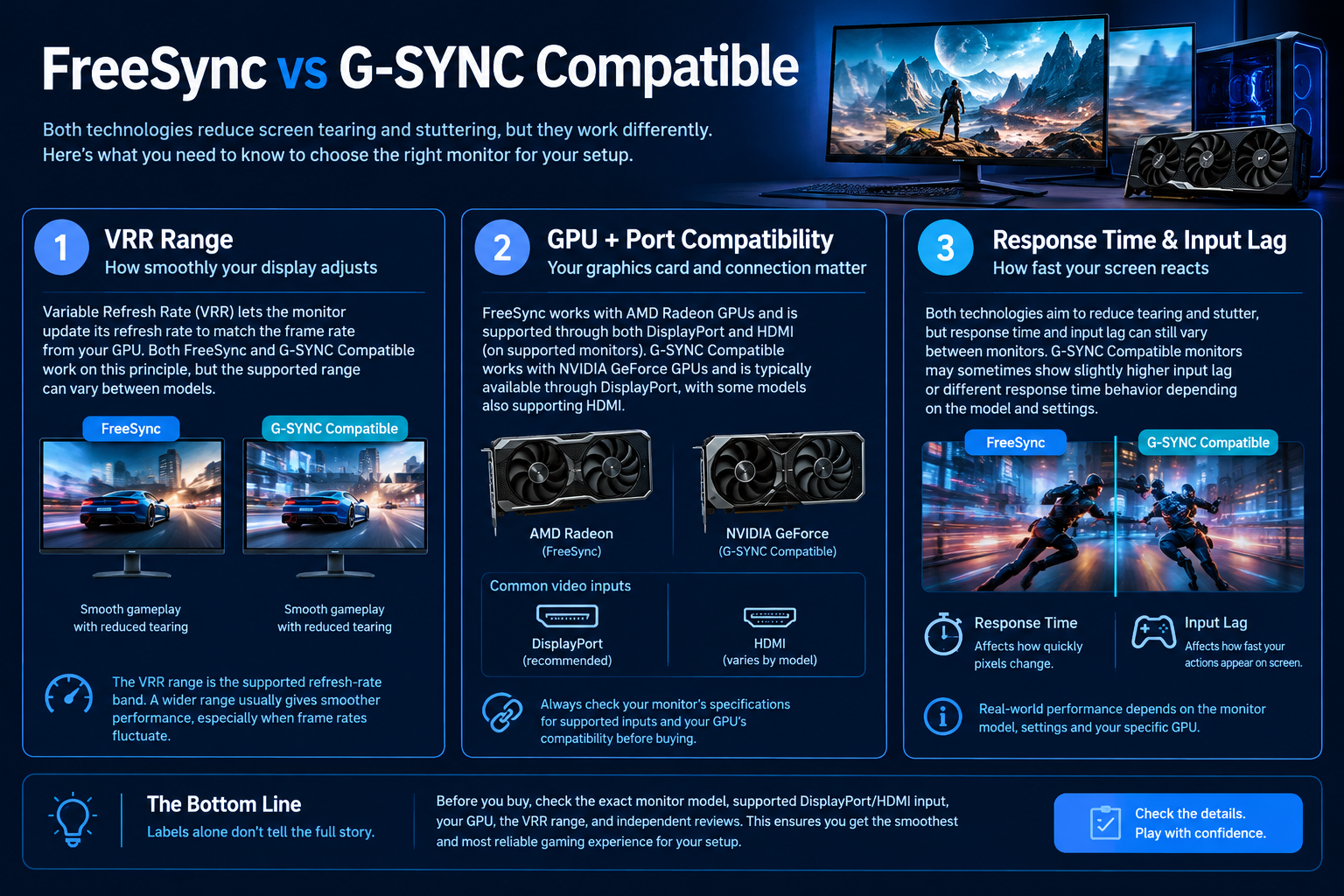
FreeSync and G-SYNC are associated with variable refresh rate (VRR), which lets a compatible display adjust its refresh behaviour to changing frame rates. The aim is to reduce tearing and help motion remain smoother when frame rates fluctuate. Labels alone do not describe every aspect of a monitor’s performance or guarantee identical behaviour across all GPUs and connections.

What variable refresh rate does
Without VRR, a display refreshes according to its timing while the GPU’s frame delivery may vary. Supported VRR can align refresh behaviour more closely with frame delivery within a defined operating range. Performance outside that range depends on the monitor and its supported technologies.
FreeSync and G-SYNC Compatible labels
FreeSync is AMD’s adaptive-sync technology family. G-SYNC Compatible identifies displays validated by NVIDIA for VRR operation with supported GeForce graphics cards. A monitor’s exact certification and feature set matter, and compatibility should be checked for the model and connection you plan to use.
| Check | FreeSync | G-SYNC Compatible |
|---|---|---|
| Core purpose | Variable refresh rate on supported displays | VRR operation validated by NVIDIA for compatible displays |
| GPU and connection | Check exact monitor and AMD GPU/connection support | Check NVIDIA GPU, monitor validation and supported input |
| Refresh-rate range | Model-specific | Model-specific |
| Response and flicker behaviour | Review the exact display and settings | Review the exact display and settings |
Compatibility checks
- Verify the monitor’s exact model and official feature page.
- Check GPU model and driver support.
- Confirm which DisplayPort or HDMI input supports VRR.
- Review the supported refresh-rate range.
- Keep response time, input lag and image quality as separate comparison criteria.
A simple setup checklist
Connect the monitor using a supported port and cable, select the intended refresh rate in the operating system, and enable VRR in the monitor menu and graphics software where required. Test the games you play and consult the manuals if flicker or other unusual behaviour appears.
What to compare beyond VRR
Variable refresh rate is only one part of monitor performance. Check pixel response behaviour, overdrive artefacts, input lag, brightness, contrast, resolution and refresh rate separately. A certification label does not mean two monitors have identical motion clarity or image quality.
If a monitor flickers or behaves unexpectedly with VRR, check the manufacturer guidance, driver settings and supported refresh-rate range before assuming the display is defective.
Frequently asked questions
Does VRR increase FPS?
No. VRR changes display refresh behaviour; it does not make the GPU render more frames.
Does every FreeSync display work identically with every GPU?
No. Check the exact display, GPU, connection and supported driver configuration.
Sources
Next step: Verify the official VRR support for your exact GPU-monitor combination before buying.
Explore monitor buying guides.