


ALFRENSIA PC BASICS · 7 MIN READ
The right RAM capacity depends on the games, applications and projects you run together. Capacity, memory generation, module configuration, speed and motherboard compatibility all matter, so check actual usage and platform support before buying.
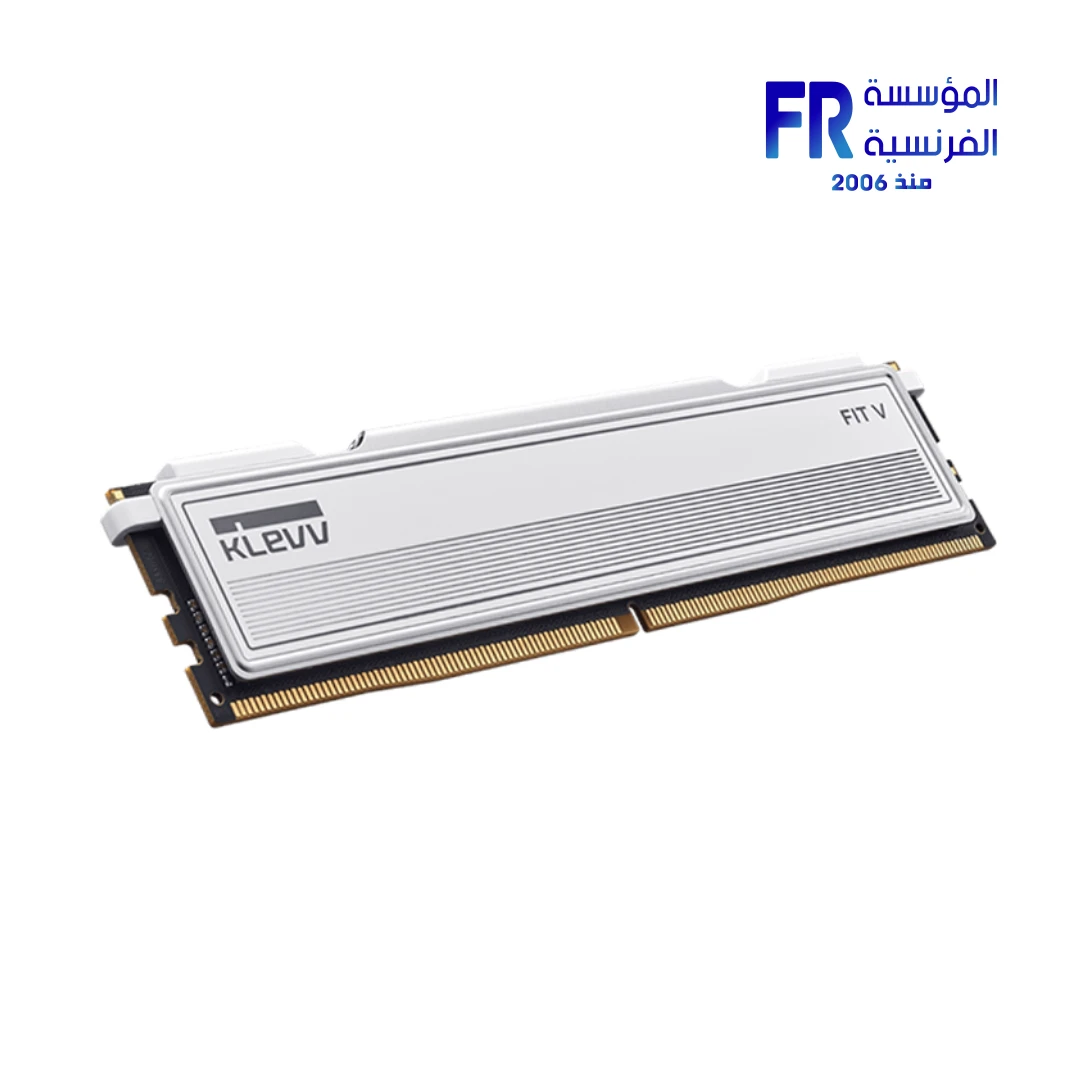
What RAM does—and what it does not do
System memory holds data that the CPU and applications need to access quickly. When the workload exceeds available memory, the operating system may rely more heavily on storage, which can affect responsiveness. But adding RAM does not automatically make every game or application faster if memory capacity is not the limiting factor.
RAM is also different from graphics-card VRAM. System RAM is used by the operating system and CPU applications, while dedicated GPU memory serves graphics workloads. Some applications share data across both, but buying more system RAM does not replace the need for sufficient GPU memory.
How much RAM should you consider?
| Use case | Starting point to evaluate | What to check |
|---|---|---|
| Everyday tasks and light multitasking | 16GB | Browser tabs, office apps, background tools, and operating-system use |
| Modern gaming and general multitasking | 16GB–32GB | Game requirements, launchers, voice chat, browser, and recording software |
| Gaming plus streaming or heavier multitasking | 32GB is a sensible configuration to evaluate | Combined memory usage while all applications are active |
| Video editing, 3D, large creative projects, or virtual machines | 32GB or more, depending on workload | Project size, application requirements, caches, and simultaneous tasks |
These are practical starting points, not universal minimums or guarantees. Check the software developer’s current requirements and measure memory use in the actual projects you run. Some light workloads can be comfortable with less, while large professional projects or multiple virtual machines may need considerably more.
How to tell whether you need more RAM
On Windows, open Task Manager and inspect the Memory section while running the applications that usually cause slowdowns. Look at memory usage, available memory, and whether performance changes when you close a large application. Repeat the test during the workload you care about rather than relying on an idle reading.
- If memory usage remains high and the system becomes less responsive when multiple applications are open, additional capacity may help.
- If memory usage is comfortably below the installed capacity and the GPU or CPU is fully occupied, adding RAM may have little effect on the issue.
- If the system stutters only in one game or after a driver or software change, investigate other causes before buying hardware.
Do not use one percentage threshold as an automatic upgrade rule. Windows uses available memory for caching, and the meaning of the numbers depends on the workload.
One module or two?
Many desktop platforms support multiple memory channels. Using a suitable matched kit in the motherboard’s recommended slots can enable the intended memory-channel configuration. Follow the motherboard manual for the correct DIMM slots; do not assume the correct positions are always the two closest to the CPU or the two outermost slots.
Mixing separate memory kits can sometimes work, but it is not guaranteed to operate at the kits’ advertised speed. Differences in memory ICs, timings, ranks, capacity, and module count can affect stability and achievable speed. For a new build or upgrade, a matched kit supported by the motherboard is the simpler starting point.
DDR4 vs DDR5: check the motherboard first
DDR4 and DDR5 modules are not interchangeable. A motherboard is designed for a specific memory generation, and a DDR5 kit cannot be installed in a DDR4 DIMM slot. Choose the memory type supported by the exact motherboard model.
Memory speed support also depends on the CPU, motherboard, BIOS, and module configuration. Advertised XMP or EXPO speeds may be considered overclocked memory settings and are not guaranteed for every CPU or system. Check the motherboard’s memory support information and be prepared to use a lower stable speed if necessary.
Capacity, speed, and latency are different
Capacity determines how much data can be held in memory. Data rate affects transfer bandwidth, while timings describe aspects of latency. These specifications are related but do not replace one another.
For gaming, the performance difference between memory kits depends on the game, CPU, platform, and settings. If the system is GPU-limited, a faster RAM kit may have little visible effect. For productivity tasks, use benchmarks relevant to the application instead of assuming that the highest advertised data rate is always best.
Can you upgrade your current RAM?
Before buying, check the motherboard’s maximum supported capacity, number of DIMM slots, supported memory generation, and recommended configurations. On laptops, memory may be soldered or have restricted upgrade options, so consult the exact model’s service information.
- Identify the motherboard or laptop’s exact model.
- Check whether RAM is replaceable and how many slots are available.
- Record the installed capacity, module count, and memory generation.
- Consult the motherboard manual and memory support list.
- Decide whether you need more capacity or are trying to solve a different performance issue.
- After installation, verify that the system detects the full capacity and test stability.
Before buying, confirm the supported memory generation and kit configuration in your motherboard documentation. Compare a compatible KLEVV FIT V 32GB DDR5 memory kit only after checking compatibility with your exact platform.
RAM upgrade checklist
- Measure memory use during your actual workload.
- Choose capacity for the applications you run together, with reasonable headroom.
- Confirm DDR4 or DDR5 compatibility.
- Check module count, supported speed, and recommended slots.
- Review the motherboard’s memory support information.
- Compare the cost of a matched kit with the cost of replacing existing modules.
- After installation, confirm capacity and stability before assuming the upgrade is complete.
Frequently asked questions
Is 32GB always better than 16GB for gaming?
Not in every game or system. 32GB can provide more headroom for modern games and multitasking, but the benefit depends on actual memory use and the rest of the PC.
Will more RAM increase FPS?
It can help when memory capacity or configuration is limiting performance, but it will not reliably improve FPS when the GPU or CPU is the main limit.
Can I mix different RAM brands?
Modules from different brands may work together, but matching capacity, generation, and specifications is safer. The system may run all modules at a lower common speed, and stability is not guaranteed.
Should I buy the fastest RAM my motherboard lists?
Not automatically. Confirm CPU support, motherboard compatibility, and whether the price premium is justified by benchmarks for your workload.
Sources
Always confirm memory support against the exact motherboard or laptop model and the current manufacturer documentation.
دليل اختيار الرام للألعاب والشغل وصناعة المحتوى
سعة RAM المناسبة بتعتمد على الألعاب والبرامج والمشروعات اللي بتشغّلها مع بعض. راجع الاستخدام الفعلي وتوافق المنصة قبل شراء ذاكرة جديدة.
الرام بتعمل إيه وإيه اللي مش بتعمله؟
الرام بتحتفظ بالبيانات اللي البرامج محتاجاها أثناء التشغيل. لو السعة غير كافية، ممكن يحصل بطء أو تقطيع بسبب الاعتماد على التخزين. لكن زيادة الرام مش بتزود FPS تلقائياً لو السعة الحالية كافية.
تحتاج كام جيجابايت؟
الاختيار بيتوقف على نوع الألعاب والبرامج وحجم المشروعات وتعدد المهام. اعتبر توصيات البرامج ومتطلبات الألعاب نقطة بداية، وراقب الاستخدام الفعلي قبل تحديد السعة.
إزاي تعرف إنك محتاج رام أكتر؟
راقب استهلاك الذاكرة أثناء الاستخدام المعتاد، وشوف إذا كان النظام بيستخدم page file بكثافة أو التطبيقات بتتباطأ عند فتح برامج إضافية.
قطعة واحدة ولا قطعتين؟
تكوين الذاكرة وعدد القنوات بيأثروا على الأداء في بعض الحالات. راجع دليل اللوحة الأم وتوصيات تركيب الوحدات في الشقوق الصحيحة.
DDR4 ولا DDR5؟ راجع اللوحة الأول
نوع الذاكرة لازم يطابق ما تدعمه اللوحة الأم والمعالج؛ DDR4 وDDR5 مش قابلين للتبديل المباشر.
السعة والسرعة والتأخير مواصفات مختلفة
السعة تحدد كمية البيانات الممكن الاحتفاظ بها، والسرعة والتأخير بيأثروا على نقل البيانات والاستجابة. التوافق والاستقرار أهم من اختيار رقم سرعة مرتفع فقط.
هل تقدر تزود الرام الحالية؟
راجع عدد الشقوق المتاحة والحد الأقصى المدعوم ونوع الذاكرة والوحدات المركبة حالياً. خلط وحدات مختلفة قد يجعل النظام يعمل بإعدادات مشتركة أقل أو يسبب مشاكل استقرار.
قائمة مراجعة ترقية الرام
- تأكد من DDR4 أو DDR5.
- راجع الحد الأقصى والسعة لكل شق.
- تحقق من عدد الشقوق المتاحة.
- راجع دعم السرعة من اللوحة والمعالج.
- اختبر الاستقرار بعد التركيب.
الأسئلة الشائعة
هل 32GB أفضل دائماً من 16GB للألعاب؟
مش في كل حالة؛ الفائدة بتعتمد على اللعبة والبرامج المفتوحة وحجم الذاكرة المستخدمة.
هل الرام الأكثر تزود FPS؟
فقط لو سعة الذاكرة أو تكوينها كان بيحدّ الأداء؛ غير كده الفرق قد يكون محدوداً.
هل أقدر أخلط ماركات مختلفة؟
قد تعمل معاً، لكن التوافق والاستقرار مش مضمونين لكل تركيبة. الأفضل مراجعة المواصفات واختبار الاستقرار.
أشتري أسرع رام تدعمها اللوحة؟
راجع دعم المعالج واللوحة والسعر والاستقرار؛ أعلى رقم معلن مش بالضرورة أفضل قيمة.
المصادر الرسمية
تأكد من نوع الذاكرة والسعة والسرعة المدعومة من صفحة اللوحة أو اللابتوب المحدد، ومتطلبات البرامج اللي بتستخدمها.
قبل ما تشتري RAM جديدة
راجع موديل اللوحة أو اللابتوب، وعدد الشقوق المتاحة، ونوع DDR، والتكوين المدعوم. لو هدفك حل بطء الجهاز، قِس استخدام الذاكرة الأول عشان تتأكد إن السعة هي المشكلة.
راجع أدلة شراء RAM على موقع المؤسسة الفرنسية للكمبيوتر، أو تواصل مع المبيعات على واتساب للاستفسار عن توافق الرام والتوفر الحالي.