

ALFRENSIA BUYING GUIDE · 8 MIN READ
A strong PC build starts with a complete budget and a clear workload—not a fixed percentage for each part. Include the display and essential accessories, then balance performance, compatibility and reliability across the whole system.
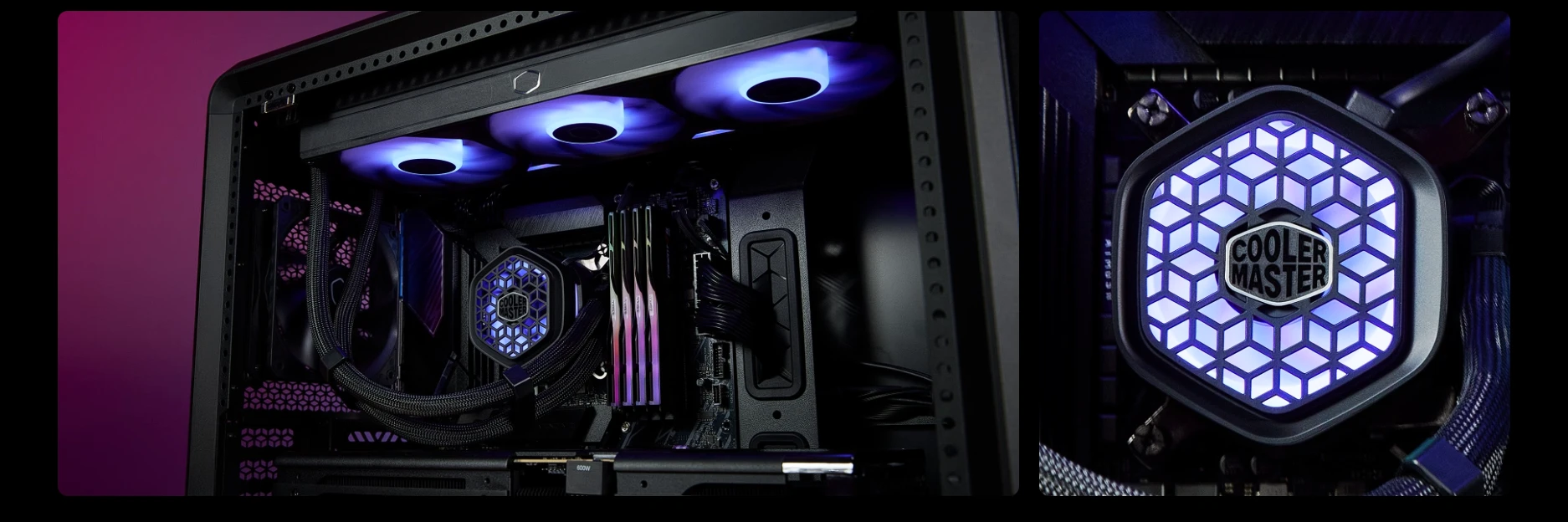
Start with the complete budget, not just the tower
Before choosing parts, decide what the budget must cover. Does it include the monitor, keyboard, mouse, headset, operating system, assembly, and any required upgrades to the desk or network? A parts list that uses the entire budget on the tower can leave too little for the display or accessories needed to use it properly.
Set aside a small contingency for price changes or a missing cable, adapter, or compatibility requirement. Avoid spending this reserve early just to move up one component tier.
1. Define the main workload
Write down the most important use cases: competitive gaming, story-driven games, streaming, video editing, 3D rendering, CAD, programming, or general office work. Then identify the applications and games you actually use. Their requirements are more useful than a vague label such as “high-end PC.”
- Gaming: choose a target resolution, image-quality level, and frame rate. Competitive 1080p gaming may prioritise high frame rates, while 1440p or 4K gaming increases the graphics workload.
- Video editing: check the codecs, resolution, effects, and software-specific hardware acceleration used by your projects.
- 3D work: distinguish CPU rendering from GPU rendering and check the renderer’s supported hardware and memory needs.
- Development and multitasking: consider compile times, virtual machines, containers, memory usage, and the number of applications open at once.
2. Budget for the GPU and CPU as a pair
For many gaming builds, the GPU is a major performance driver, especially at higher resolutions and quality settings. But choosing the most expensive graphics card while leaving too little for the CPU, power supply, or monitor can create a poorly balanced system.
Match the CPU to your games, target frame rate, and GPU. High-refresh competitive games can be CPU-sensitive, while some graphically demanding games place more load on the GPU. For professional software, follow the application’s recommended and tested hardware guidance rather than assuming gaming rankings apply to every workload.
Compare real benchmarks from the same game or application, at the resolution and settings you intend to use. A benchmark at 1080p does not automatically predict performance at 4K, and average FPS alone does not show frame-time consistency.
3. Treat the monitor as part of the performance budget
The monitor determines the resolution and refresh rate you are trying to drive. A powerful GPU paired with a basic display may not deliver the experience you expected, while a high-resolution, high-refresh monitor may require more GPU performance than the budget can support.
Compare resolution, refresh rate, response behaviour, panel type, adaptive sync support, size, connectivity, and warranty. For creative work, also consider colour coverage and calibration needs. If the monitor is not included in the tower budget, make that explicit before comparing builds.
4. Choose RAM and storage for real workloads
RAM capacity should reflect the applications, projects, games, and multitasking you expect. Check motherboard support and whether the platform uses DDR4 or DDR5; these memory types are not interchangeable. Leave room for the workload to grow if you routinely work with large files or many applications.
For storage, plan capacity first, then compare SSD interface and performance. An NVMe SSD can be useful for large projects and fast transfers, but paying for the highest sequential speed is not always the best use of a limited budget. Keep space for the operating system, applications, active projects, game libraries, caches, and future files.
5. Do not underfund the PSU, case, or cooling
The power supply should be selected for the exact CPU and graphics card, their power connectors, and the full system. Check the GPU manufacturer’s recommendation and the power-supply model’s quality, protections, and connector support. Do not choose by wattage printed on the box alone.
The case must physically fit the motherboard, graphics card, CPU cooler, and radiator if used. It also needs an airflow layout appropriate for the heat output. A cooler that is too small, noisy, or incompatible can undermine the build; an expensive liquid cooler is not automatically necessary for every CPU.
6. Use a flexible allocation method
Instead of forcing every build into a fixed percentage split, price a sensible baseline for the non-negotiable components first: motherboard compatibility, adequate PSU, usable case, required cooling, and the minimum RAM and storage for the workload. Then allocate the remaining budget to the components that most affect your target experience.
- Write down the total budget and everything it must include.
- Choose the target workload, resolution, frame rate, and applications.
- Price a compatible CPU and GPU combination using relevant benchmarks.
- Reserve enough for the monitor and essential peripherals.
- Choose RAM, storage, PSU, case, and cooling without compromising compatibility.
- Compare the complete total, including assembly or operating-system costs where applicable.
- Recheck the parts list for fit, connectors, BIOS support, and warranty terms.
Where should you save money?
Consider a less expensive motherboard if the cheaper model still provides the required CPU support, memory support, expansion, connectivity, and power delivery. Choose SSD performance based on the workload instead of headline numbers. Select cooling that suits the CPU and case, and avoid paying for cosmetic features that do not matter to you.
Do not save money by using an unsuitable PSU, an incompatible motherboard, insufficient RAM for your software, or a monitor that cannot deliver the experience you are budgeting for. Those compromises can create additional cost later.
Common budget-allocation mistakes
- Spending the whole budget on the graphics card before pricing the rest of the system.
- Ignoring the monitor, peripherals, or assembly costs.
- Buying a CPU or GPU based on model number rather than workload-specific benchmarks.
- Choosing memory that the motherboard does not support.
- Buying an oversized cooler or premium motherboard while leaving too little for the GPU or display.
- Using a low-quality or incompatible PSU to make the total fit.
- Failing to check dimensions, power connectors, BIOS support, and warranty conditions.
Frequently asked questions
What percentage of my budget should go to the GPU?
There is no universal percentage. The answer depends on gaming resolution, target frame rate, CPU-sensitive workloads, monitor cost, and whether the budget includes peripherals. Build and compare complete configurations.
Should I buy a cheaper monitor to afford a better GPU?
Only if the monitor still matches your needs. The display is the part you interact with every day, and resolution and refresh rate affect the GPU performance you need. Compare both parts together.
Is it better to buy a stronger CPU now for future upgrades?
Potentially, but only when the platform and upgrade path are relevant to your plans. Check socket support, motherboard firmware, memory generation, and the likely cost of the future upgrade.
Official resources to check before buying
- Intel — how to build a gaming PC
- AMD — Ryzen desktop processors
- NVIDIA — GeForce graphics cards
- Corsair — PSU selection resources
Component availability and pricing change. Confirm the exact product specifications, compatibility, local price, and warranty before purchasing.
When comparing the budget split against real options, use verified product pages such as the Palit GeForce RTX 5080 graphics card and the Philips Evnia 34-inch WQHD monitor—then check current prices and ensure the rest of the build is balanced.
إزاي توزّع ميزانية الكمبيوتر بين GPU وCPU والشاشة وباقي القطع؟
التجميعة القوية بتبدأ بميزانية كاملة واستخدام واضح، مش بنسبة ثابتة لكل قطعة. احسب الشاشة والملحقات ووازن الأداء والتوافق والاعتمادية.
ابدأ بالميزانية الكاملة
احسب الجهاز والشاشة والكيبورد والماوس وسماعة الرأس وأي برامج أو ملحقات ضرورية.
1. حدد الاستخدام الأساسي
الألعاب التنافسية والمونتاج والتصميم والرندر وAI المحلي احتياجاتهم مختلفة؛ حدد أهم المهام أولاً.
2. خطط للـGPU وCPU معاً
اختارهم حسب الدقة والبرامج وهدف الأداء. ما ترفعش ميزانية قطعة على حساب مكوّن يقيّد النظام.
3. اعتبر الشاشة جزءاً من ميزانية الأداء
الدقة ومعدل التحديث لازم يناسبوا قدرة الجهاز؛ الشاشة نفسها جزء أساسي من التجربة.
4. اختار RAM وتخزين حسب الاستخدام
حدد السعة من واقع الألعاب والمشروعات، وراجع التوافق والسعة المطلوبة بدلاً من دفع فرق سعر لمواصفات لن تستفيد منها.
5. ما تهملش PSU والكيسة والتبريد
راجع جودة مزوّد الطاقة وتوصيلاته وقدرته، ومساحة الكيسة وتدفق الهواء والتبريد المطلوب.
6. استخدم توزيعاً مرناً
ابدأ بالأولوية الرئيسية، ثم تحقق من أن باقي القطع لا تحدّ الأداء ولا تسبب مشكلات توافق.
توفر فين؟
وفّر في المزايا غير الضرورية أو الشكل إذا كان ذلك لا يضر الأداء والاعتمادية. لا تقلل من جودة PSU أو التوافق أو التبريد المطلوب.
أخطاء شائعة
- تخصيص نسبة ثابتة للـGPU من غير تحديد الهدف.
- نسيان تكلفة الشاشة والملحقات.
- اختيار PSU أو كيسة غير مناسبة.
- شراء مواصفات أعلى من احتياج الاستخدام.
الأسئلة الشائعة
أخصص كام في المية للـGPU؟
مافيش نسبة واحدة تصلح للجميع؛ تعتمد على الألعاب والدقة والميزانية.
أشتري شاشة أرخص عشان GPU أقوى؟
وازن التجربة كاملة؛ الشاشة بتحدد الدقة ومعدل التحديث اللي هتستفيد منهم.
أشتري CPU أقوى للمستقبل؟
فقط لو الزيادة منطقية مع المنصة والميزانية والاستخدام المتوقع.
مصادر رسمية قبل الشراء
- NVIDIA — مواصفات كروت الشاشة لمراجعة متطلبات GPU.
- Intel Support لمراجعة مواصفات المعالج والمنصة.
- AMD Support للتحقق من مواصفات ودعم المعالجات.
- Corsair PSU resources لفهم اختيار مزود الطاقة والتوافق.
الميزانية المناسبة بتختلف حسب الألعاب والدقة والشاشة والقطع الموجودة بالفعل؛ راجع الأسعار والتوفر والضمان الحالي لكل منتج قبل اتخاذ القرار.
بتجهز تجميعتك؟
راجع الخيارات المتاحة على موقع المؤسسة الفرنسية للكمبيوتر، أو تواصل مع المبيعات على واتساب لمناقشة التوافق والميزانية والتوفر الحالي.