


ALFRENSIA BUYING GUIDE · 8 MIN READ
The right gaming monitor is the one that matches your PC’s performance, the games you play and the features you will notice every day. Start with resolution and realistic frame rate, then compare panel behaviour, refresh rate, connectivity, ergonomics and the warranty for the exact model.
Key takeaway: Do not buy by refresh rate or advertised response time alone. Match the display to your GPU and verify the exact model code, ports and warranty before paying.
Jump to
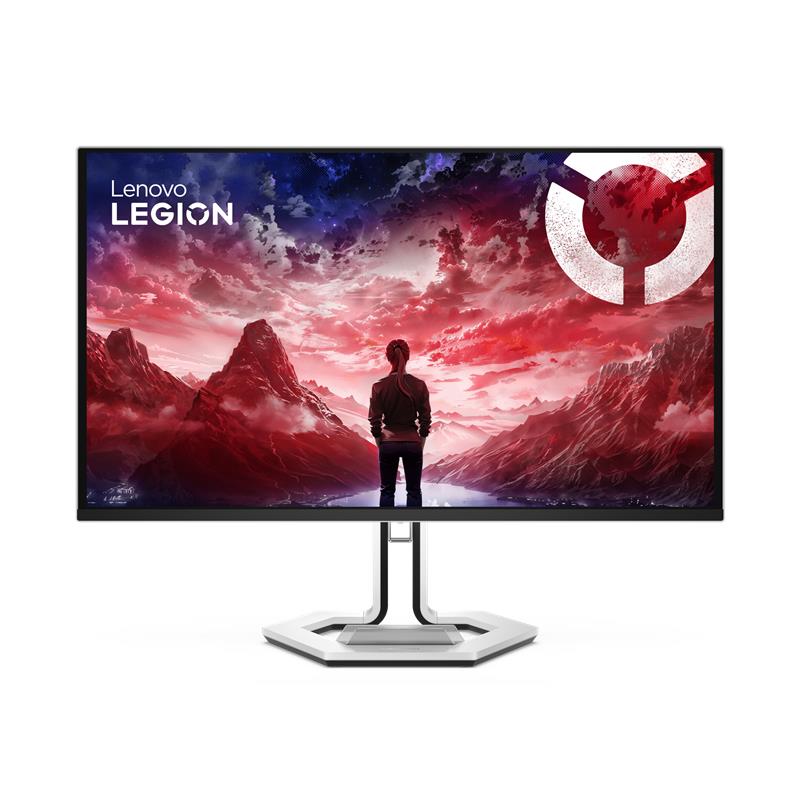
Start with your PC and the games you play
Decide whether you prioritise competitive games, cinematic single-player titles, productivity or a mix. Check how your current GPU performs at the resolution and settings you intend to use. The display should fit both the experience you want and the graphics performance you can reasonably afford.
Competitive players may prioritise high refresh rate and clear motion. Visually demanding games may benefit more from a balanced mix of resolution, image quality and sustainable frame rate. If you also work on the PC, consider text clarity, screen size, colour performance and stand ergonomics.
1080p vs 1440p vs 4K
- 1080p (Full HD): often easier to drive at high frame rates and can suit budget-conscious or competitive setups.
- 1440p (QHD): offers more detail than 1080p and can be a balanced option for gaming and everyday desktop use, depending on GPU performance.
- 4K (UHD): provides substantially more pixels, but demanding games usually need more graphics performance to sustain high frame rates at native resolution.
Consider resolution alongside screen size and viewing distance. Pixel count alone does not determine the whole experience; GPU requirements also depend on game settings, upscaling and the frame rate you target.
What refresh rate should you choose?
Refresh rate, measured in hertz (Hz), is how often the display can refresh each second. Higher refresh rates can make supported motion look smoother and reduce display-side delay, especially in fast games. The benefit depends on the game, frame rate, pixel response and your sensitivity to motion clarity.
A 240Hz or 360Hz monitor is not automatically the best purchase for everyone. If your system rarely reaches the corresponding frame rate, or you mainly play slower-paced games, another display with better resolution, contrast, colour or ergonomics may offer more value.
IPS vs VA vs OLED
- IPS: commonly selected for viewing angles and colour performance, though contrast and motion characteristics vary by model.
- VA: can offer higher native contrast, but dark-scene transitions and motion behaviour differ significantly between models.
- OLED: can deliver very strong contrast and fast pixel response, but price, brightness behaviour, text rendering and image-retention precautions deserve consideration.
Panel labels are only a starting point. Where available, check independent measurements for the exact model—especially motion response, overshoot, contrast, brightness, colour accuracy and uniformity.
Response time and motion clarity
Advertised grey-to-grey response time is measured under particular conditions and may not describe every pixel transition. Overdrive can improve some transitions but introduce overshoot or inverse ghosting. Refresh rate, pixel response, input lag, frame rate and adaptive sync are related but different properties.
For this reason, do not choose solely by the smallest millisecond number on the box. Look for reliable measurements and reviews of the exact monitor where possible.
Adaptive sync and GPU compatibility
Adaptive sync helps the display refresh in step with supported frame rates, reducing tearing and often improving smoothness when performance varies. Confirm the monitor’s variable-refresh range and whether it works with your GPU and chosen connection. Compatibility and feature names vary by model, port and driver.
Check ports, stand and desk fit
Check diagonal size, stand adjustment, VESA mount support, desk depth and viewing distance. Confirm the exact ports and their capabilities: DisplayPort or HDMI version, USB-C video support if needed, USB hub features and whether your target resolution and refresh rate work through the connection you plan to use. Not every port necessarily supports the monitor’s maximum mode.
Buying a gaming monitor in Egypt: what to verify
Compare the final local price and exact model code, not just the product-family name. Regional variants can differ in ports, stand, accessories or warranty terms. Check the seller’s stated warranty, coverage and defect-reporting process before purchase.
For OLED displays, read the manufacturer’s guidance on pixel care, image retention and usage precautions. For every panel type, confirm how dead pixels, backlight issues or other defects are handled under the applicable warranty. Policies can differ between brands, models and sellers.
For a concrete example of how specifications fit together, compare the Philips Evnia 34M2C5500Q WQHD gaming monitor with other models based on your actual needs—not just its headline numbers.
Monitor buying checklist
- Choose a target resolution and realistic frame rate.
- Match the monitor to your GPU and the games or applications you use.
- Compare panel type and independent measurements for the exact model.
- Check refresh rate, response behaviour, input lag and adaptive sync.
- Verify screen size, stand adjustment, VESA support and desk fit.
- Confirm the ports support your intended resolution and refresh rate.
- Check exact model code, accessories, local price and warranty terms.
- Read manufacturer care guidance, especially for OLED displays.
Common monitor-buying mistakes
- Buying the highest refresh rate without checking the PC’s actual performance.
- Choosing by advertised response time alone.
- Assuming every monitor with the same panel technology performs identically.
- Ignoring ports, stand ergonomics and physical desk fit.
- Comparing prices without confirming the model code and warranty.
- Choosing 4K without considering the GPU performance required by your games.
Frequently asked questions
Is 1440p better than 1080p for gaming?
It offers more detail, but it can also place more load on the GPU. The better choice depends on your graphics card, screen size, target frame rate and budget.
Is 240Hz worth it?
It can be valuable for competitive games when your PC delivers high frame rates and you benefit from smoother motion. Other features may matter more for slower-paced games or mixed workloads.
Should I choose OLED or IPS?
Compare the exact models and your priorities. OLED can provide excellent contrast and fast pixel response, while IPS models vary in colour, brightness, contrast and motion. Price, usage patterns and warranty should also factor into the decision.
Official resources
- VESA DisplayPort — interface information
- HDMI Licensing Administrator — HDMI specifications
- NVIDIA — G-SYNC technology information
- AMD — FreeSync technology information
Specifications, local availability, prices and warranty conditions change. Verify the exact model and current terms before purchase.
إزاي تختار Gaming Monitor في مصر؟
اختار الشاشة بموازنة الدقة ومعدل التحديث مع قدرة جهازك، وبعدها قارن نوع اللوحة والاستجابة وAdaptive Sync والمنافذ والضمان. راجع مواصفات الموديل الفعلي قبل الشراء.
ابدأ بجهازك والألعاب
حدد كارت الشاشة والألعاب والدقة وهدف FPS. الشاشة لازم تناسب الأداء اللي جهازك يقدر يقدمه.
1080p مقابل 1440p مقابل 4K
الدقة الأعلى بتعرض تفاصيل أكثر لكنها تحتاج معالجة بكسلات أكثر. اختار حسب حجم الشاشة والمسافة وقدرة GPU.
تختار كام Hz؟
معدل تحديث أعلى ممكن يحسن السلاسة، خصوصاً في الألعاب التنافسية، بشرط أن الجهاز يقدّم إطارات كافية.
IPS ولا VA ولا OLED؟
كل نوع له خصائص مختلفة في التباين والألوان وزوايا الرؤية والاستجابة. قارن مراجعات الموديل نفسه بدل الاعتماد على اسم التقنية فقط.
Response Time ووضوح الحركة
زمن الاستجابة المعلن لا يصف كل أداء الحركة؛ راجع اختبارات ghosting وovershoot وإعدادات overdrive.
Adaptive Sync وتوافق GPU
تأكد من دعم الشاشة وكارت الشاشة والاتصال المستخدم لنطاق VRR المطلوب.
المنافذ والحامل ومساحة المكتب
راجع HDMI وDisplayPort وUSB-C إن وجد، وضبط الارتفاع والميل ومساحة المكتب ونمط تثبيت VESA.
شراء شاشة في مصر: إيه اللي تراجعه؟
تحقق من الموديل الدقيق والتوافر والسعر الحالي وسياسة الاستبدال والضمان المحلي قبل الطلب.
قائمة شراء الشاشة
- الدقة ومعدل التحديث.
- نوع اللوحة ومراجعات الحركة.
- منافذ الاتصال والتوافق.
- الحامل والمساحة.
- الضمان والتكلفة الكاملة.
أخطاء شائعة
ما تختارش بناءً على Hz أو زمن استجابة معلن فقط؛ راجع الصورة والحركة والمنافذ والضمان معاً.
الأسئلة الشائعة
هل 1440p أفضل من 1080p للألعاب؟
يوفر تفاصيل أكثر، لكن الاختيار يعتمد على حجم الشاشة وأداء GPU وتفضيلاتك.
هل 240Hz يستاهل؟
لو بتلعب ألعاب تنافسية وجهازك يحقق FPS مرتفعاً، قد تستفيد منه؛ راجع الاستخدام الفعلي.
أختار OLED ولا IPS؟
قارن التباين وجودة الحركة والسعر وطبيعة الاستخدام ومخاوف الاحتفاظ بالصورة حسب الموديل.
مصادر رسمية قبل اختيار الشاشة
- NVIDIA G-SYNC Monitors للتحقق من توافق VRR.
- AMD FreeSync لمعلومات التقنية المدعومة.
- VESA DisplayPort لمعلومات معيار DisplayPort.
راجع مواصفات الموديل الدقيق والمنافذ والتوافق والضمان المحلي؛ الأرقام المعلنة وحدها لا تكفي للحكم على جودة الحركة أو الصورة.
قارن الشاشات المتاحة
راجع خيارات الشاشات على موقع المؤسسة الفرنسية للكمبيوتر، أو تواصل مع المبيعات على واتساب للاستفسار عن التوافق والتوفر الحالي في مصر.