

ALFRENSIA TECH GUIDE · 7 MIN READ
When a CPU or GPU runs hot, the important question is not simply “Is this number high?” It is whether your exact component is operating within its specifications and maintaining expected performance. Temperatures depend on the chip, workload, cooler, case airflow, room conditions and power settings—so one universal limit cannot diagnose every PC.
Key takeaway: Check the exact model’s manufacturer guidance, record temperature alongside clock speed and performance, then investigate airflow and cooling before buying replacement parts.
In this guide
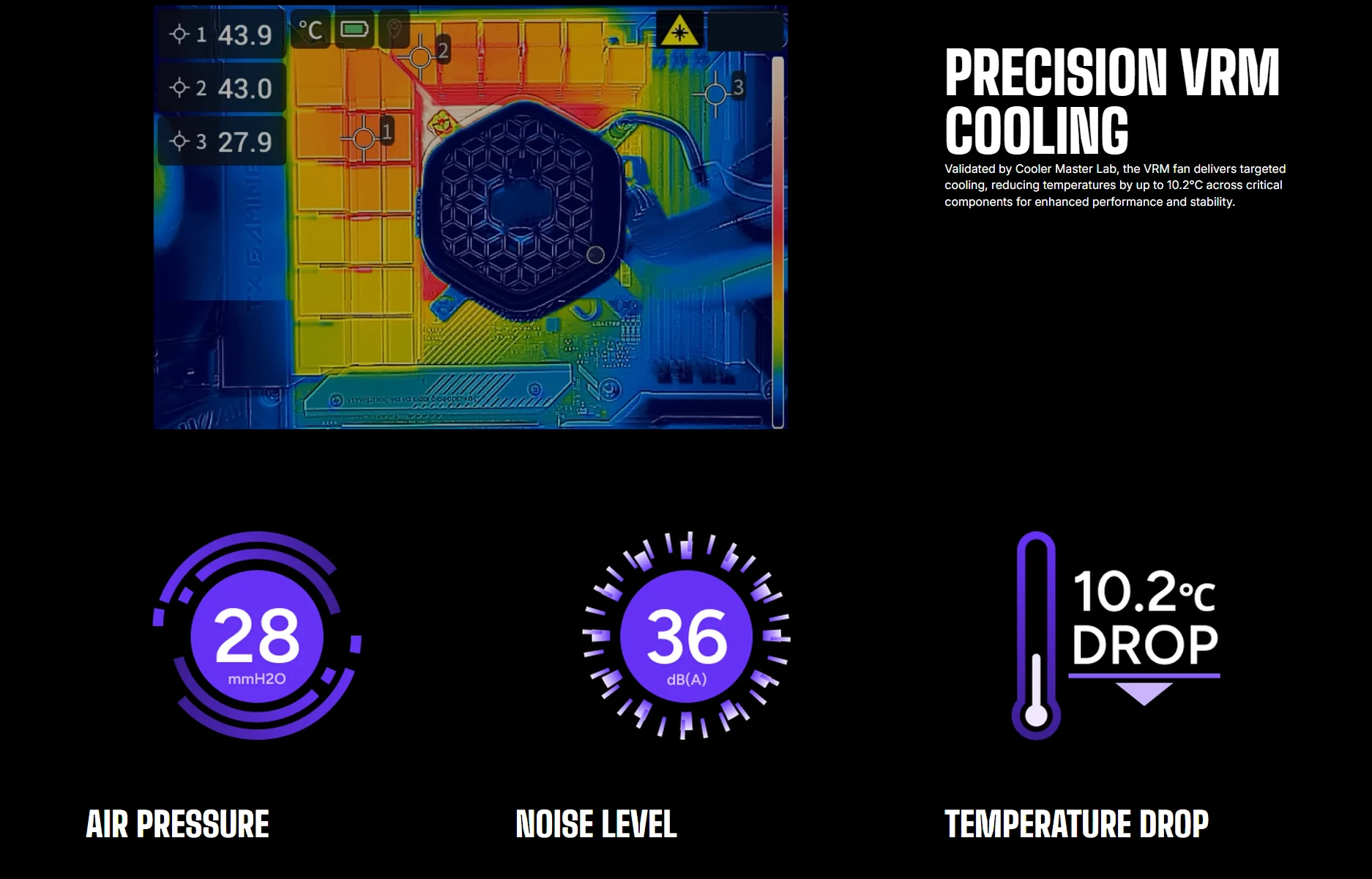
Why CPU and GPU temperatures vary
Temperatures change with workload, room temperature, fan curves, case airflow, cooler design and power limits. A short boost can look different from a long gaming session or sustained render. Laptop and desktop components also have different thermal and power behaviour, so avoid comparing unrelated systems.
Some tools show CPU package temperature, individual core readings, GPU core temperature, hotspot or memory temperature. These are different sensors. Confirm which one you are reading before comparing it with documentation or another PC.
How to check temperatures properly
- Use a reputable monitoring utility that supports your exact hardware, or the component manufacturer’s software.
- Record temperatures at idle, then during a repeatable game or application workload.
- Watch clock speeds, utilisation, fan speeds and any thermal-throttling indicator available in the tool.
- Repeat the test with similar settings and room conditions so the results are comparable.
- Look for performance drops that coincide with thermal limits; a single high reading alone does not prove a fault.
Signs heat may be affecting performance
- Clock speeds fall during sustained load while a thermal-limit indicator is active.
- Performance drops after the system has been running for a while under the same workload.
- Fans become unusually loud or ramp up and down frequently.
- The PC becomes unstable or shuts down under load. These symptoms can also have software, power or hardware causes.
Modern processors and graphics cards can adjust boost behaviour dynamically. High temperature does not automatically mean damage or a defective cooler. Check the exact model’s operating guidance and whether the system is actually throttling.
Check airflow before replacing hardware
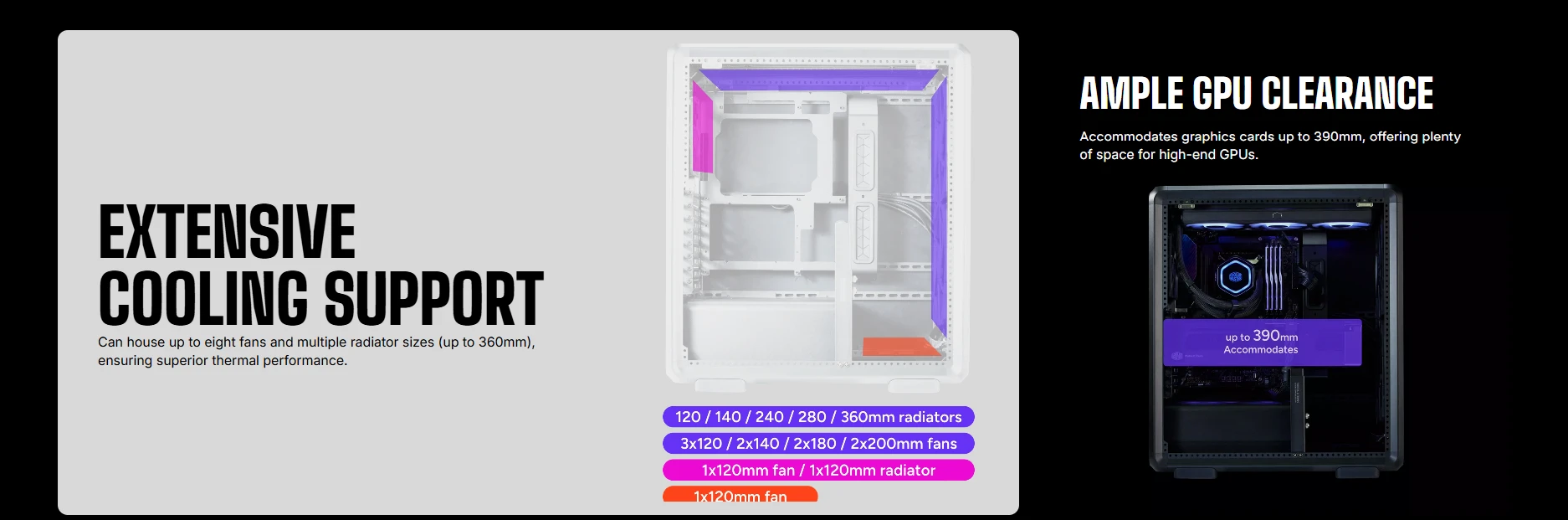
Start with simple checks: leave space around air intakes and exhausts, make sure vents are not blocked, and confirm fans are connected and spinning as expected. Dust can restrict filters, heatsinks and radiators. Check fan orientation and whether cables or components obstruct the intended airflow.
Before cleaning inside the PC, shut it down, switch off and unplug the power supply, and follow the case and component manufacturers’ instructions. Do not open a power supply. If you are unsure about safe cleaning or cooler installation, use a qualified technician.
Check the CPU cooler and case fans
Confirm that the CPU cooler is mounted correctly, its fan or pump is operating, and the cooler is suitable for the processor’s power behaviour. For an AIO liquid cooler, follow the manufacturer’s troubleshooting steps and use available monitoring information. Noise alone is not enough to diagnose pump failure.
More fans are not automatically better. A balanced intake and exhaust arrangement, clean filters and unobstructed airflow can matter more than fan count. Check radiator, cooler and graphics-card clearance too. If you are considering a cooling upgrade, compare the system’s dimensions and compatibility before choosing a part.
If measurements show that the cooler is inadequate, compare a compatible model such as the ID-COOLING SL360 V2 AIO cooler only after checking CPU support, case radiator clearance and the exact model requirements.
GPU core, hotspot and memory temperatures
Some graphics cards report several thermal readings. GPU core, hotspot and memory temperatures refer to different areas and are not interchangeable. The available sensors and acceptable limits vary by model, so use the board partner’s documentation for your exact card.
If readings are outside the manufacturer’s guidance or the card throttles unexpectedly, check airflow, dust and fan operation. Contact warranty support before attempting invasive repairs.
Software and settings can increase heat
High power limits, overclocking, undervolting instability, uncapped frame rates and intensive background workloads can affect temperature and fan noise. Return tuning settings to default during troubleshooting, close unnecessary background tasks and repeat the same test. Change one variable at a time so you can tell what made a difference.
A practical heat troubleshooting checklist
- Identify the exact CPU, GPU, cooler, case and PSU models.
- Read the official operating-limit guidance for those exact components.
- Record temperature, clocks, utilisation, fan speeds and performance during a repeatable workload.
- Inspect vents, filters, fan direction, case clearance and visible dust.
- Check cooler mounting and confirm fans or pump operate as expected.
- Return tuning settings to default while testing.
- Repeat the test before buying new cooling hardware.
- If the system remains unstable or readings exceed manufacturer guidance, contact the manufacturer or a qualified service provider.
Common temperature mistakes
- Applying one universal temperature limit to every CPU and GPU.
- Comparing different sensors as if they were the same.
- Assuming a high reading automatically proves the cooler is defective.
- Buying a bigger cooler before checking dust, mounting, fan operation and airflow.
- Changing BIOS, voltage and fan settings all at once.
- Opening a PSU or attempting repairs that require a qualified technician.
Frequently asked questions
What is a normal CPU temperature while gaming?
It depends on the exact CPU, its power limits, cooler, workload and room conditions. Check the manufacturer’s specifications and look for throttling or abnormal performance rather than relying on a universal number.
Is GPU hotspot the same as GPU temperature?
No. They refer to different sensors. Check the documentation for your graphics card and compare each reading with the appropriate guidance.
Should I replace my cooler if the CPU gets hot?
Not automatically. Check mounting, fan operation, dust, airflow and power settings first, and confirm whether the CPU is actually throttling.
Official resources
- Intel Support — processor specifications and thermal guidance
- AMD Support — processor and graphics support
- NVIDIA Support — graphics card support
Thermal limits and monitoring behaviour vary by exact model. Confirm current manufacturer documentation before making changes.
درجات حرارة الكمبيوتر: إزاي تفحص حرارة CPU وGPU؟
مفيش درجة حرارة واحدة تعتبر طبيعية لكل المعالجات والكروت. الموديل والحمل والحرارة المحيطة وحدود الشركة المصنعة كلها عوامل مهمة.
ليه درجات الحرارة بتختلف؟
المعالج وكارت الشاشة بيغيروا التردد والطاقة حسب الحمل والتبريد وحدود التشغيل. قارن القياسات تحت حمل متشابه بدل رقم منفصل.
إزاي تقيس الحرارة صح؟
استخدم أداة موثوقة متوافقة مع العتاد، وسجّل الحرارة والتردد والاستخدام أثناء مهمة قابلة للتكرار. راجع مواصفات الشركة للموديل نفسه.
علامات إن الحرارة بتأثر على الأداء
انخفاض التردد تحت الحمل أو تراجع الأداء بعد فترة قد يشير إلى thermal throttling، لكنه يحتاج مقارنة الترددات والحدود والحرارة.
راجع تدفق الهواء قبل تغيير القطع
افحص الغبار والفلاتر واتجاه المراوح والمساحة حول الكيسة وحرارة الغرفة.
راجع مبرد CPU ومراوح الكيسة
تأكد من تثبيت المبرد وتوصيل المراوح وعمل المضخة إذا كان المبرد مائياً، واتبع تعليمات الشركة.
GPU Core وHotspot وحرارة الذاكرة
دي قراءات مختلفة وقد يكون لكل منها حد خاص حسب الموديل. لا تقارن قراءة hotspot بقراءة core كأنهما نفس الشيء.
البرامج والإعدادات قد ترفع الحرارة
الأحمال الطويلة ومعدل الإطارات غير المحدود وبرامج الخلفية قد تزيد استهلاك الطاقة والحرارة.
قائمة تشخيص الحرارة
- نظّف الغبار بأمان والجهاز مفصول عن الكهرباء.
- تأكد من اتجاه المراوح وعملها.
- راقب التردد والحرارة تحت حمل ثابت.
- راجع حدود الشركة للموديل.
- اختبر بعد كل تغيير.
أخطاء شائعة
ما تعتمدش على رقم عام لكل الأجهزة، وما تغيّرش المبرد قبل التأكد من التركيب وتدفق الهواء والحمل.
الأسئلة الشائعة
إيه الحرارة الطبيعية أثناء اللعب؟
تعتمد على الموديل والحمل وحدود الشركة المصنعة.
هل GPU hotspot هو نفس حرارة GPU؟
لأ، دي قراءات مختلفة لمواضع قياس مختلفة.
أغيّر المبرد لو CPU حرارته عالية؟
افحص التثبيت والمراوح وتدفق الهواء وإعدادات الطاقة أولاً.
مصادر رسمية لحدود الحرارة
- Intel Support لمواصفات المعالج وحدود التشغيل حسب الموديل.
- AMD Support لمواصفات ودعم المعالجات.
- NVIDIA GeForce لمعلومات كروت الشاشة.
استخدم حدود الشركة المصنعة للموديل الفعلي، لأن قراءات CPU package وGPU core وhotspot مش قابلة للمقارنة كأنها نفس القياس.
محتاج تراجع خيارات التبريد؟
راجع خيارات التبريد والمكونات على موقع المؤسسة الفرنسية للكمبيوتر، أو تواصل مع المبيعات على واتساب للاستفسار عن التوافق والتوفر الحالي.