

Microsoft Auto SR (Automatic Super Resolution) is now out of preview on the ROG Xbox Ally X and X20, following Microsoft’s November 10, 2026 announcement. The release adds undocked handheld play, 1080p input support and a Performance Mode rated for up to 120 FPS. It is a meaningful Windows gaming update, but it is not a universal frame-rate boost and it does not work on every PC or game.
What changed in Microsoft’s November 10 update?
Microsoft says Auto SR is now out of preview on the ROG Xbox Ally X and ROG Xbox Ally X20. The update also expands support to selected Copilot+ PCs powered by AMD Ryzen. Players can use the feature while holding the handheld and playing on battery, rather than needing to keep it docked.
The update removes another practical limitation from the preview: Auto SR can now work with games running at a 1080p input resolution. Microsoft also says Auto SR and Auto HDR can work together on compatible AMD-based devices. Performance Mode is the headline addition, with a supported ceiling of up to 120 FPS; Quality Mode is designed to prioritize image quality and supports up to 75 FPS.
Rollout note: Microsoft said Performance Mode and Auto HDR support would arrive through Windows updates and might take time to reach every device. A feature appearing in the announcement does not mean every compatible PC receives it on the same day.
How Microsoft Auto SR works
Auto SR is an operating-system-level upscaling feature. A supported game renders at a lower input resolution, then Windows uses an AI model running on the device’s Neural Processing Unit (NPU) to reconstruct a higher-resolution output. The aim is to reduce the work the graphics processor must do for each frame while keeping more visible detail than a simple low-resolution image.
That makes Auto SR different from game-integrated technologies such as NVIDIA DLSS or AMD FSR. Those technologies are implemented through a game’s own rendering path, while Auto SR is designed to help compatible existing games without requiring each developer to add a separate Auto SR option. Compatibility is still limited by the device, Windows version, game architecture and graphics API.
What do the 120 FPS figures actually mean?
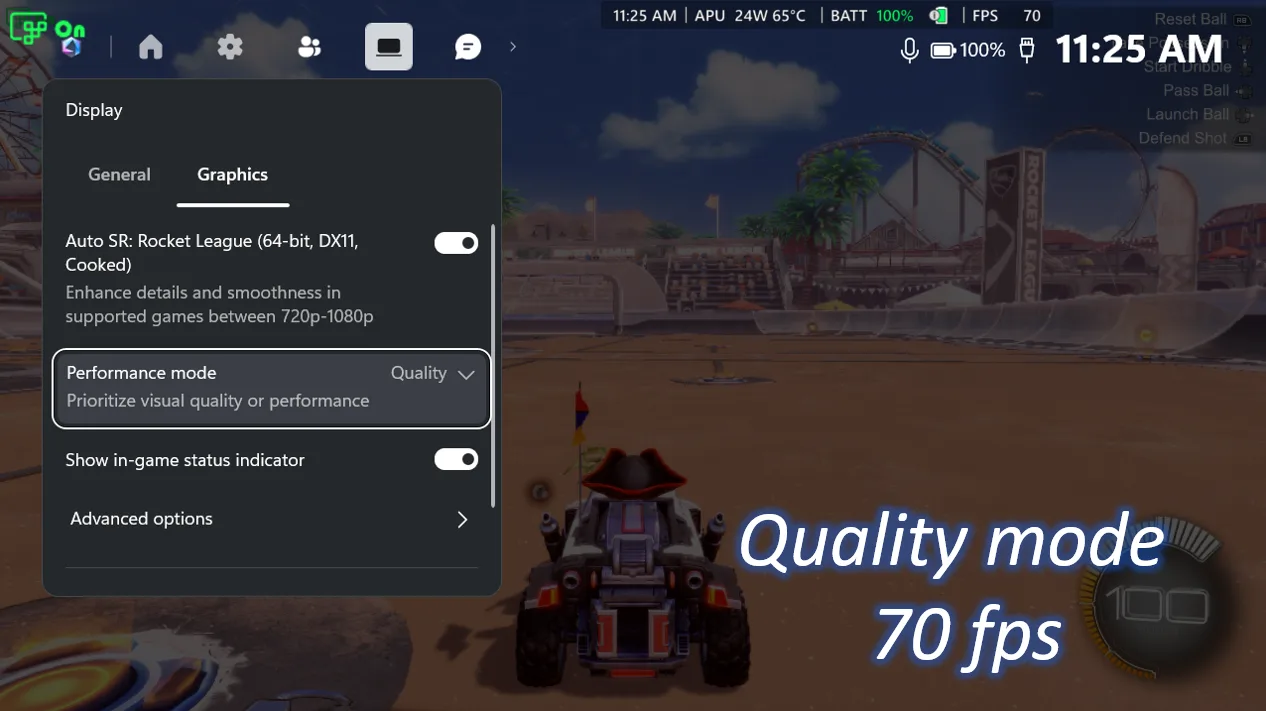
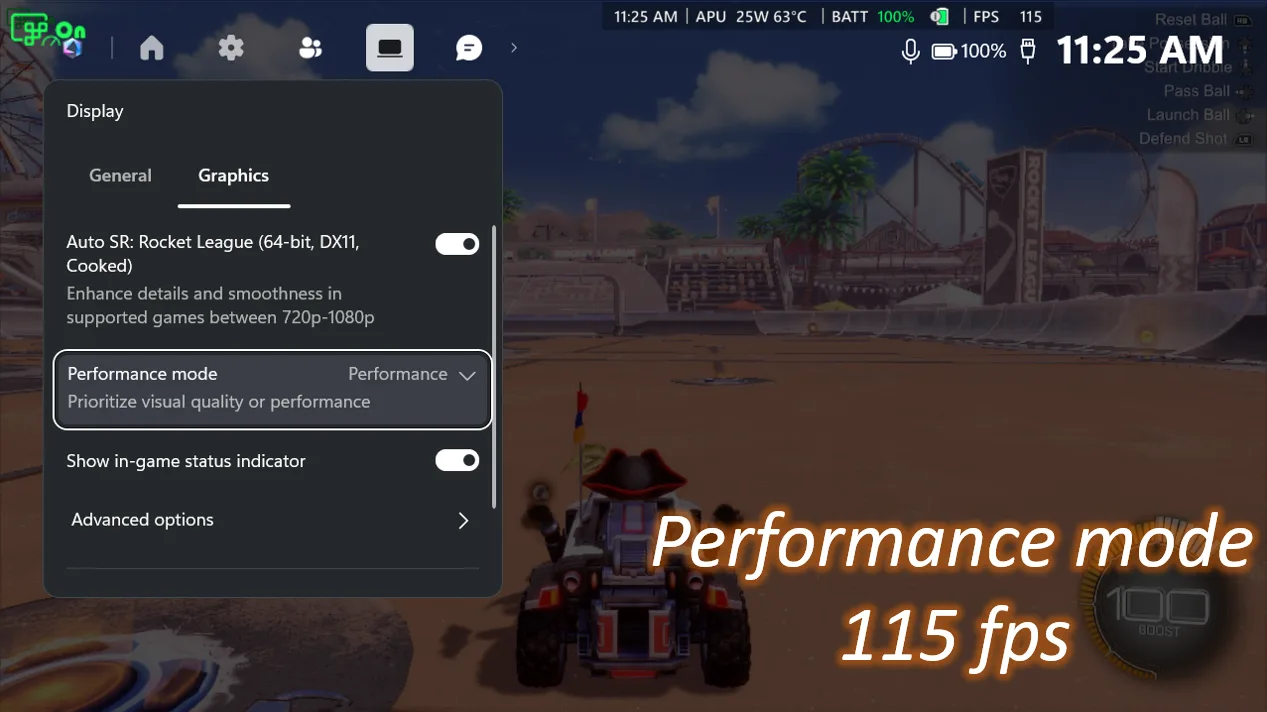
Microsoft’s announcement includes a Rocket League demonstration on the ROG Xbox Ally X, using a 720p input resolution and high in-game graphics settings. In the company’s example, Quality Mode averaged 70 FPS and Performance Mode averaged 115 FPS. Those numbers illustrate Microsoft’s own test configuration; they should not be treated as a guaranteed result for other games, devices or power settings.
The support ceiling is also not the same as a promise that every title will run at 120 FPS. Actual performance depends on the game, the device’s NPU and graphics hardware, the selected resolution, the Windows and driver versions, and the power profile. If a game is already running smoothly, upscaling may be less useful than leaving the image native.
Auto SR compatibility: check these requirements first
Microsoft’s current support documentation lists several Copilot+ PC platforms. The device must have a supported NPU, the correct Windows build, current drivers and a compatible game. The word Copilot+ on a product page is not enough on its own: check the exact processor and device model.
| Area | Microsoft’s listed requirement |
|---|---|
| AMD platform | AMD Ryzen AI processor, including the ROG Xbox Ally X and X20 handhelds. |
| Intel platform | Intel Core Ultra Series 3 or Arc G3 processor with an AI Boost NPU; Microsoft lists the MSI Claw 8 EX AI+ as an example. |
| Qualcomm platform | Snapdragon X or X2 processor with a Hexagon NPU. |
| Operating system | Windows 11 version 24H2 or later, fully updated. |
| Display and drivers | A 1080p-or-higher display and current graphics and neural-processor drivers. |
| Game support | DirectX 10 or later, running natively on x64, through x64 emulation, or on Arm64. |
Microsoft says games using x86 architecture or alternative graphics runtimes such as DirectX 9, Vulkan and OpenGL are not supported. Its recommended input-resolution range also varies by platform: AMD Ryzen-based Copilot+ PCs are listed for 720p to 1080p, while Intel and Snapdragon systems have different recommended starting points.
HDR and other limitations worth knowing
There is an important distinction between Auto HDR and a game’s native HDR output. Microsoft’s November announcement says Auto SR and Auto HDR can run together on compatible AMD devices. Its support documentation separately says native HDR content is not currently supported while Auto SR is active. If a game uses native HDR and the picture does not behave as expected, check Microsoft’s current guidance and test with Auto SR disabled.
Auto SR can also soften small interface elements or text when the game is rendered at a lower resolution. Microsoft’s support page recommends using the Game Bar status indicator and changing the input resolution or disabling the feature if the visual trade-off is not worthwhile.
What this means for Egyptian PC buyers and builders
Do not buy a GPU for Auto SR alone
Auto SR is tied to supported Copilot+ hardware and an NPU. A powerful discrete graphics card by itself does not make an ordinary desktop automatically compatible.
Verify the exact processor
If you are considering an imported gaming handheld or laptop, check the full CPU model, NPU support, Windows edition and local warranty. Similar product names can hide different configurations.
Compare the game, not only the FPS number
Try the same game at the same settings, then judge image stability, latency and frame pacing. A higher displayed frame rate does not automatically mean a better experience.
Keep your upgrade plan balanced
For a desktop build, continue to prioritize the GPU, CPU, memory, cooling and monitor around the games you actually play. Treat NPU features as one capability, not a replacement for a balanced system.
Auto SR is a useful addition to the Windows gaming toolkit, especially for supported handhelds and lower-power Copilot+ PCs. It is not a reason to expect an instant upgrade on every desktop, and Microsoft has not announced an Egypt-specific retail offer or local availability for any device in this release.
How to try Auto SR on a supported device
- Install the latest Windows 11 updates and update the graphics and NPU drivers.
- Update Xbox Game Bar and install the latest Auto Super Resolution package for the device’s platform from Microsoft Store.
- Launch a compatible game, open Game Bar with the Xbox button or Win + G, then go to Widgets Menu → Display → Graphics.
- Enable Auto SR for that game and choose Quality or Performance where the selector is available.
- Check the in-game status indicator. If Auto SR is inactive, review the resolution, display mode and compatibility message shown by Game Bar.
For a fair comparison, test a short repeatable section of the same game, keep the power profile consistent and compare both the picture and responsiveness. Do not assume that the mode with the highest FPS number is automatically the best setting for every title.
Frequently asked questions
Does Auto SR work on every Windows 11 gaming PC?
No. Microsoft lists supported Copilot+ hardware with specific NPUs, Windows 11 24H2 or later, current drivers and compatible DirectX 10-or-later games.
Does Auto SR replace DLSS or FSR?
No. They use different integration paths and have different compatibility rules. Auto SR can complement the options available in a game, but it is not a universal substitute for game-integrated upscaling.
Is 120 FPS guaranteed?
No. It is the supported ceiling for Performance Mode on compatible devices. Actual results vary by game, hardware and settings.
Should desktop builders prioritize an NPU now?
Base the decision on your software and workload requirements. Auto SR alone is not a reason to choose a platform or pay more for a component.
Sources and further reading
- Microsoft DirectX Developer Blog — Auto SR officially launches on ROG Xbox Ally X and X20 (November 10, 2026).
- Microsoft Support — Automatic Super Resolution: requirements, setup and limitations.
- Alfrensia guide — DLSS vs FSR vs Frame Generation.
- Alfrensia guide — GPU Driver Update vs Clean Installation.
Building or upgrading a gaming PC?
Compare the graphics card, processor and display as one system, and verify the exact model’s compatibility and warranty before ordering.
Explore the PC Builder Browse graphics cards