

-
×
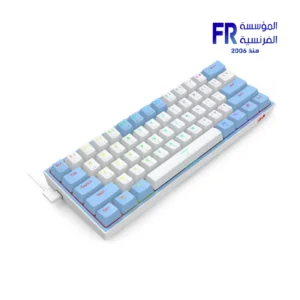 Redragon Fizz K617 Red Switch RGB 60 Percent Compact White and Blue Wired Mechanical Gaming Keyboard
1 × 1675 EGP
Redragon Fizz K617 Red Switch RGB 60 Percent Compact White and Blue Wired Mechanical Gaming Keyboard
1 × 1675 EGP -
×
 Gigabyte GeForce RTX 5060 Ti Windforce OC 16GB GDDR7 Graphic Card
1 × 25700 EGP
Gigabyte GeForce RTX 5060 Ti Windforce OC 16GB GDDR7 Graphic Card
1 × 25700 EGP -
×
Thermal Grizzly PhaseSheet PTM 50x40 Thermal Pad
1 × 450 EGP
-
×
Xigmatek Connect Ultra 360 Argb Magnetic Curved OLED 6.8 Inch Full HD Plus AMOLED Flexible Screen Aio Liquid Cpu Cooler
1 × 10499 EGP
-
×
Sandisk Extreme 500Gb Up To 1050Mb/S External Solid State Drive SSD
1 × 6215 EGP
-
×
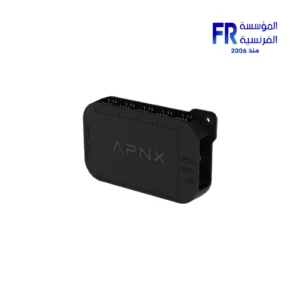
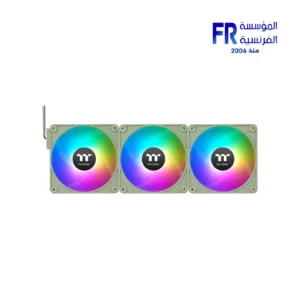
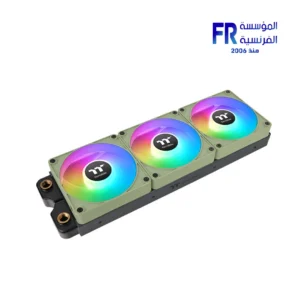
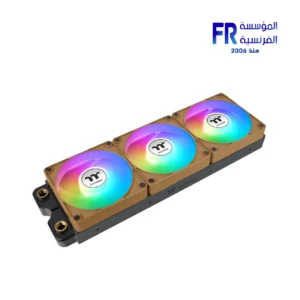
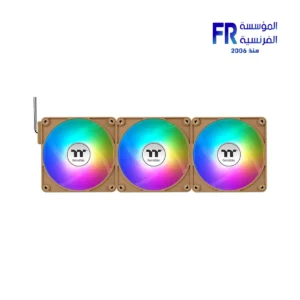
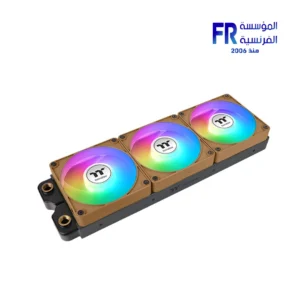
Thermaltake CT120 EX ARGB Sync Gravel Sand PC Cooling 3 Fan
1 × 2599 EGP
-
×
FSP U580 Panoramic TG Back-Connect Support With 7 120mm ARGB PWM Fans Black Ultra Mid Tower Case
1 × 6499 EGP
-
×
Lexar NM610 Pro 500GB 3300MB/s M.2 2280 PCIe Gen 3 NVMe Internal Solid State Drive SSD
1 × 3254 EGP
-
×
Xpg Probe 600w 80 Plus Bronze Power Supply
1 × 2350 EGP
-
×
Glorious GMMK Compact Fully Modular Gateron Brown Switch RGB Wired Mechanical Gaming Keyboard
1 × 3699 EGP
-
×
Lexar NQ100 512GB 550MB/s 2.5 Inch SATA 6GB/s Internal Solid State Drive SSD
1 × 3188 EGP
-
×
Msi Forge K200 English Wireless Keyboard And Mouse Combo
1 × 1300 EGP
-
×
Gigabyte B840M Eagle Wifi 6 AM5 Motherboard
1 × 6499 EGP
-
×
Meetion BTM100 Wireless And Bluetooth Dual Mode Mouse
1 × 375 EGP
-
×
MSI PRO B840M P WIFI6E AM5 Motherboard
1 × 6950 EGP
-
×
Fantech Atom MK912 PRO63 Stellar Blue Switches Grey Wireless Mechanical Keyboard
1 × 2550 EGP
-
×
Amd Ryzen 5 9600x Tray Processor
1 × 10700 EGP
-
×
Gigabyte GeForce RTX 5060 Eagle Max OC 8GB GDDR7 Graphic Card
1 × 17900 EGP
-
×
Seasonic Vertex GX-1000 1000W Atx 3.1 80 Plus Gold Fully Modular Hybrid Fan Power Supply
1 × 10500 EGP
-
×
Thermaltake Toughpower GT Snow 1200W 80 Plus Gold ATX 3.1 Fully Modular White Power Supply
1 × 8500 EGP
-
×
Hp Victus 16-R1021Nia Core I7-14700HX 16Gb Ram 1TB SSD RTX 4070 8GB-Backlite keyboard - 16.1 FHD IPS 144Hz Blue Gaming Laptop
1 × 84000 EGP
-
×
Thermalright Wonder Vision UB 360mm ARGB White AIO Liquid CPU Cooler
1 × 15000 EGP
-
×
Xigmatek Pano II Air Type C 8 Fan ARGB Pwm Curved TG EATX Super Tower Case
1 × 5299 EGP
-
×
Xigmatek Pano II LCD Type C 8 Fan ARGB Pwm 9Inch Multi Display LCD Panel Curved TG EATX Super Tower Case
1 × 7199 EGP
-
×
Sandisk Extreme PRO 2TB With USB4 External Solid State Drive SSD
1 × 19924 EGP
-
×
Gigabyte GeForce RTX 5060 Aero OC 8GB GDDR7 Graphic Card
1 × 19000 EGP
-
×
Thermaltake MAGFloe 420mm Ultra ARGB Sync Snow AIO Liquid CPU Cooler
1 × 10500 EGP
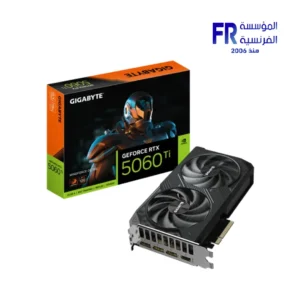 Gigabyte GeForce RTX 5060 Ti Windforce OC 16GB GDDR7 Graphic Card
  Thermal Grizzly PhaseSheet PTM 50x40 Thermal Pad
 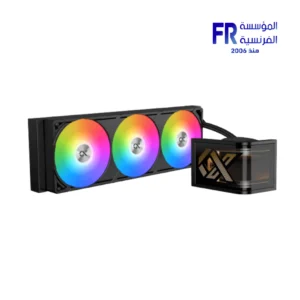 Xigmatek Connect Ultra 360 Argb Magnetic Curved OLED 6.8 Inch Full HD Plus AMOLED Flexible Screen Aio Liquid Cpu Cooler
  Sandisk Extreme 500Gb Up To 1050Mb/S External Solid State Drive SSD
  Thermaltake CT120 EX ARGB Sync Gravel Sand PC Cooling 3 Fan
 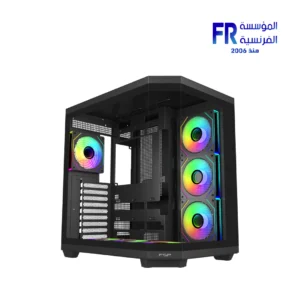 FSP U580 Panoramic TG Back-Connect Support With 7 120mm ARGB PWM Fans Black Ultra Mid Tower Case
 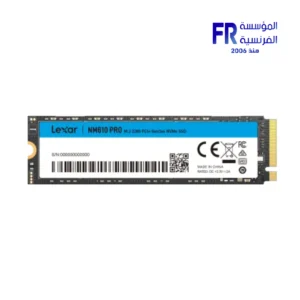 Lexar NM610 Pro 500GB 3300MB/s M.2 2280 PCIe Gen 3 NVMe Internal Solid State Drive SSD
 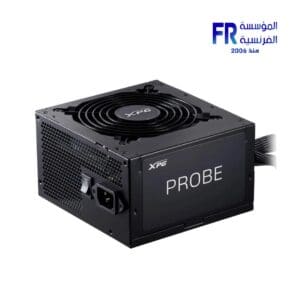 Xpg Probe 600w 80 Plus Bronze Power Supply
 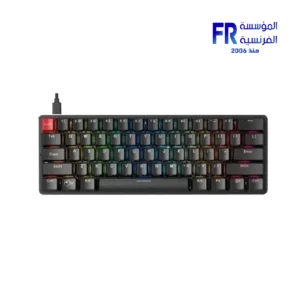 Glorious GMMK Compact Fully Modular Gateron Brown Switch RGB Wired Mechanical Gaming Keyboard
 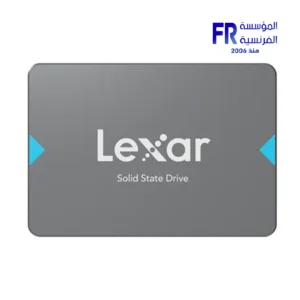 Lexar NQ100 512GB 550MB/s 2.5 Inch SATA 6GB/s Internal Solid State Drive SSD
 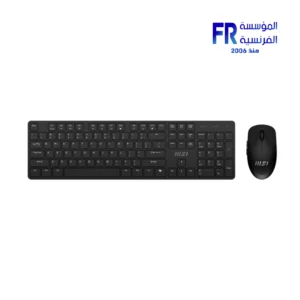 Msi Forge K200 English Wireless Keyboard And Mouse Combo
 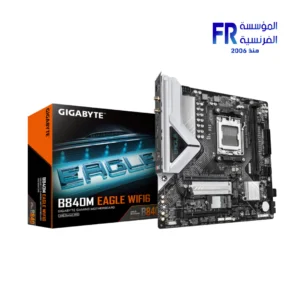 Gigabyte B840M Eagle Wifi 6 AM5 Motherboard
  Meetion BTM100 Wireless And Bluetooth Dual Mode Mouse
 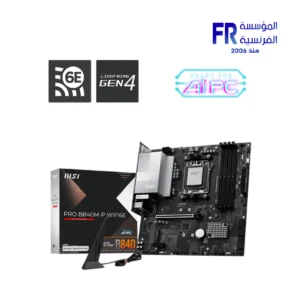 MSI PRO B840M P WIFI6E AM5 Motherboard
  Fantech Atom MK912 PRO63 Stellar Blue Switches Grey Wireless Mechanical Keyboard
 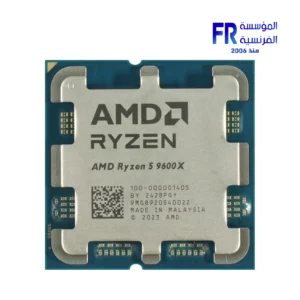 Amd Ryzen 5 9600x Tray Processor
 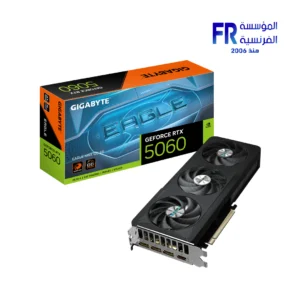 Gigabyte GeForce RTX 5060 Eagle Max OC 8GB GDDR7 Graphic Card
 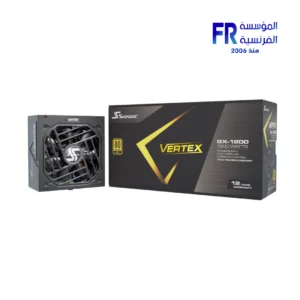 Seasonic Vertex GX-1000 1000W Atx 3.1 80 Plus Gold Fully Modular Hybrid Fan Power Supply
 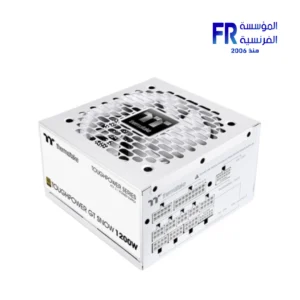 Thermaltake Toughpower GT Snow 1200W 80 Plus Gold ATX 3.1 Fully Modular White Power Supply
  Hp Victus 16-R1021Nia Core I7-14700HX 16Gb Ram 1TB SSD RTX 4070 8GB-Backlite keyboard - 16.1 FHD IPS 144Hz Blue Gaming Laptop
 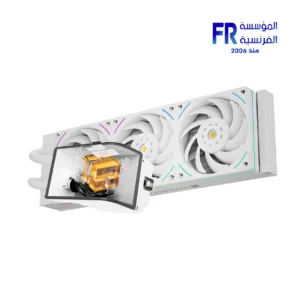 Thermalright Wonder Vision UB 360mm ARGB White AIO Liquid CPU Cooler
 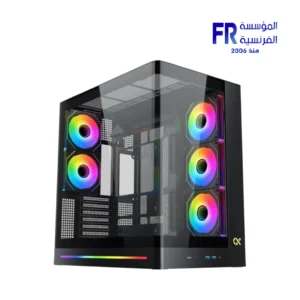 Xigmatek Pano II Air Type C 8 Fan ARGB Pwm Curved TG EATX Super Tower Case
 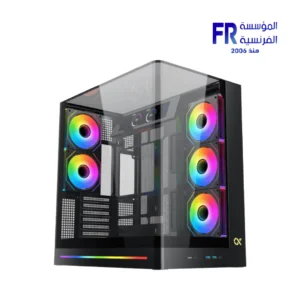 Xigmatek Pano II LCD Type C 8 Fan ARGB Pwm 9Inch Multi Display LCD Panel Curved TG EATX Super Tower Case
 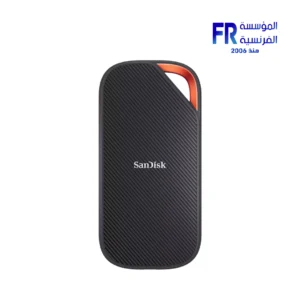 Sandisk Extreme PRO 2TB With USB4 External Solid State Drive SSD
 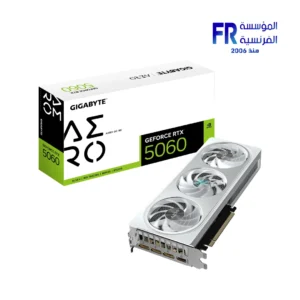 Gigabyte GeForce RTX 5060 Aero OC 8GB GDDR7 Graphic Card
 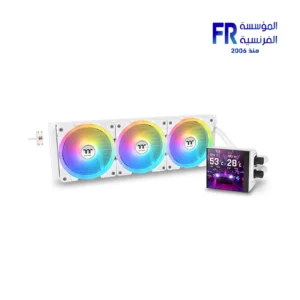 Thermaltake MAGFloe 420mm Ultra ARGB Sync Snow AIO Liquid CPU Cooler
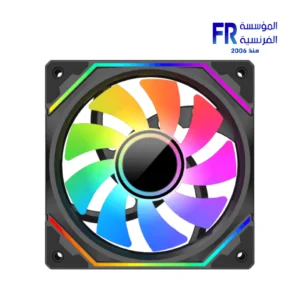
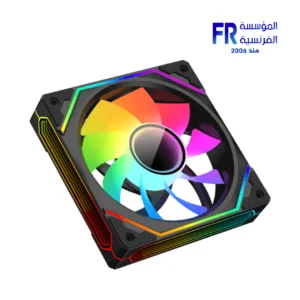
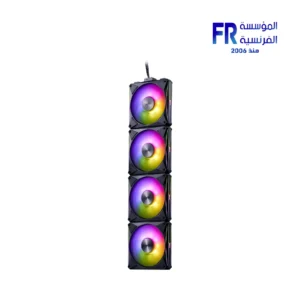
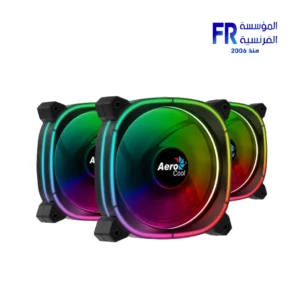
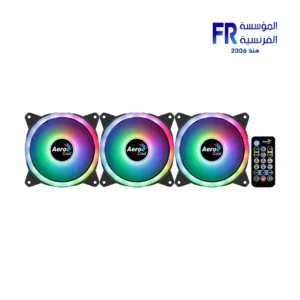
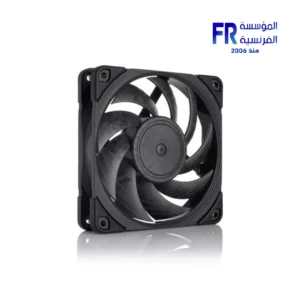
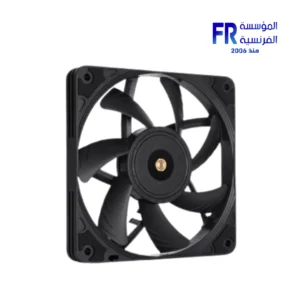
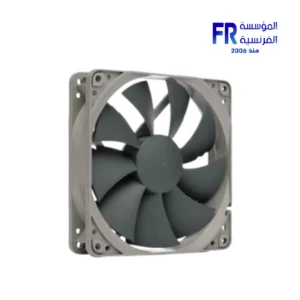
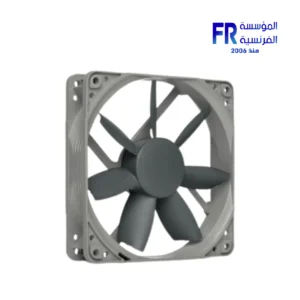
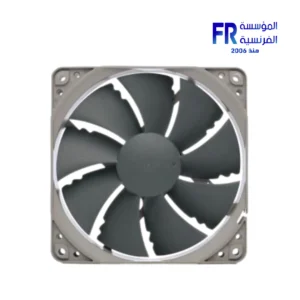
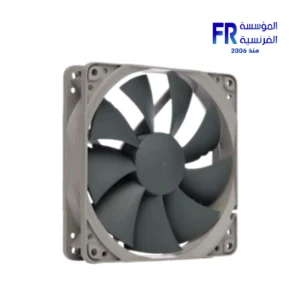
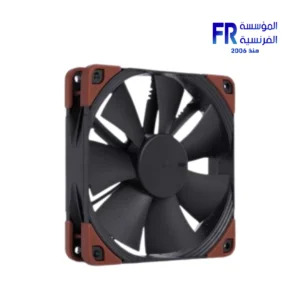
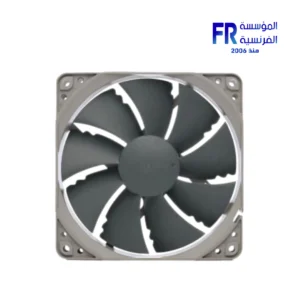
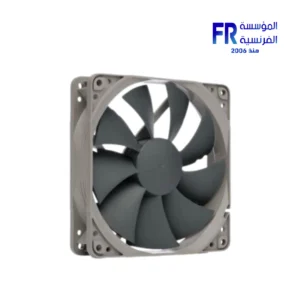
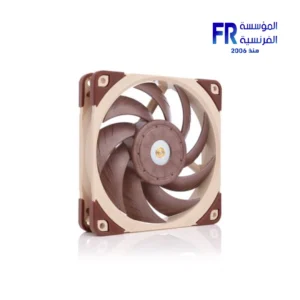
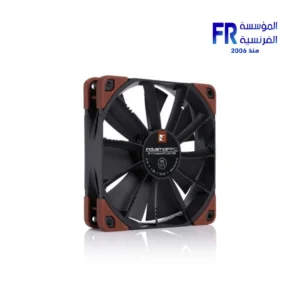
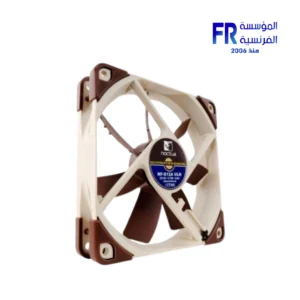
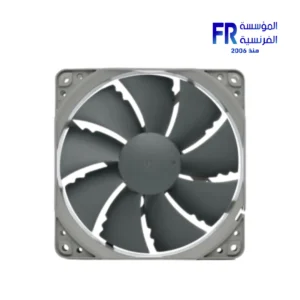
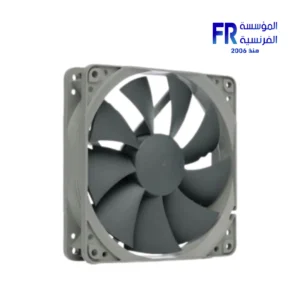
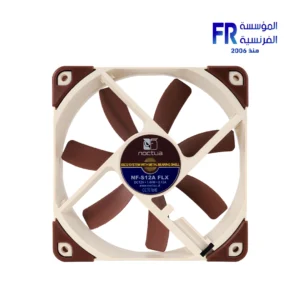
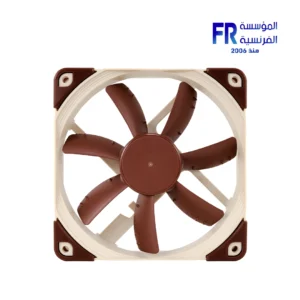
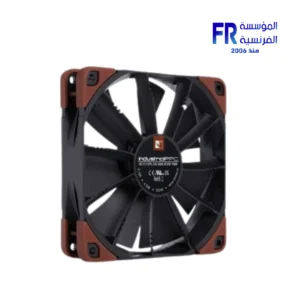
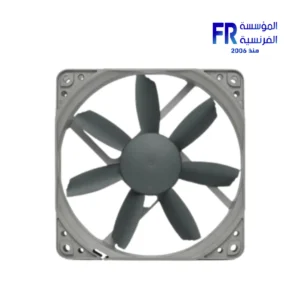
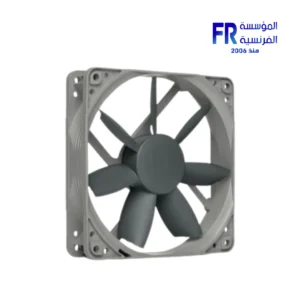
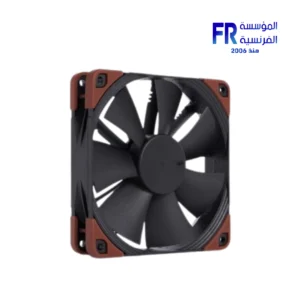
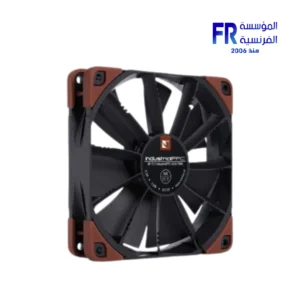
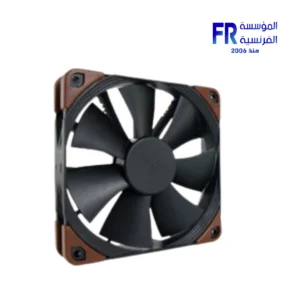
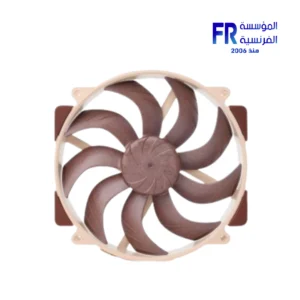
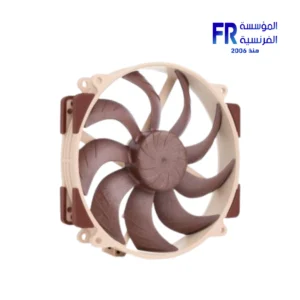
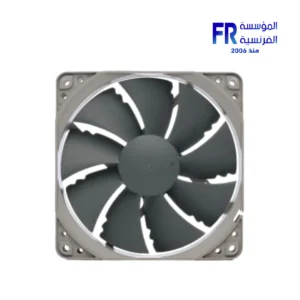
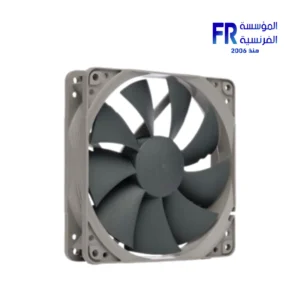
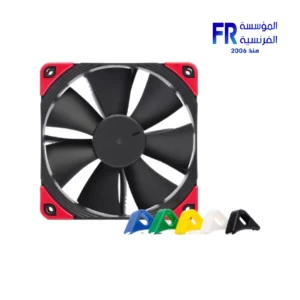
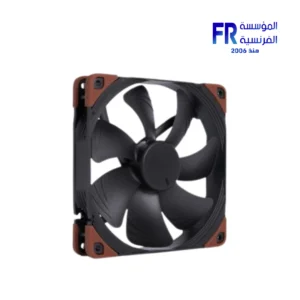
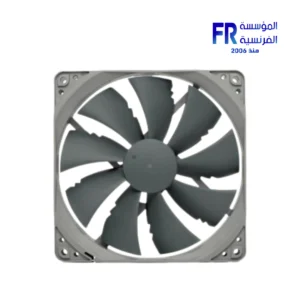
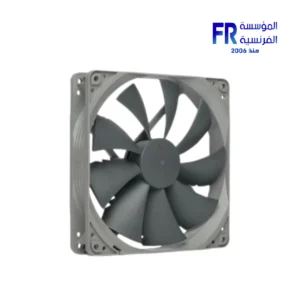
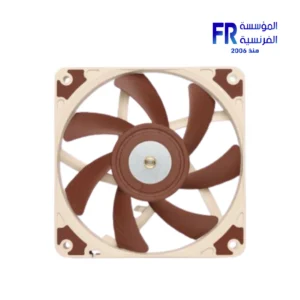
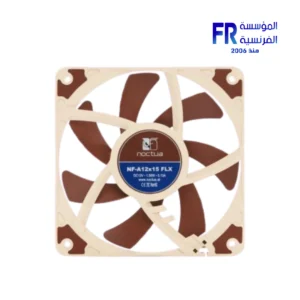
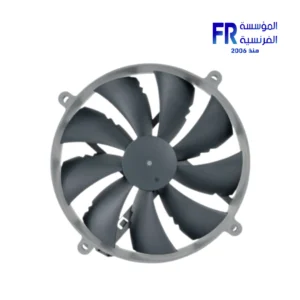
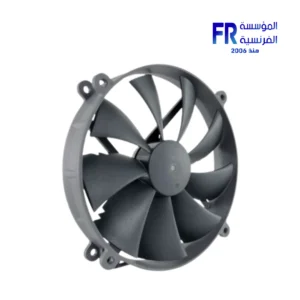
Case fans are essential for keeping your computer cool. They help to circulate air inside the case and remove heat from the components. Case fans come in a variety of sizes and speeds, so it is important to choose the right ones for your case and components.
One of the most important factors to consider when choosing case fans is airflow. Airflow is measured in cubic feet per minute (CFM). The higher the CFM rating, the more air the fan can move. For most cases, you will want to choose fans with a CFM rating of at least 50 CFM.
Another important factor to consider is noise. Case fans can be quite noisy, especially if they are running at high speeds. If you are looking for quiet fans, you will want to choose fans with a low noise rating. Noise is measured in decibels (dBA). The lower the dBA rating, the quieter the fan.
Finally, you will need to consider the size of the fans. Case fans come in a variety of sizes, including 80mm, 120mm, 140mm, and 200mm. The size of the fans will depend on the size of your case and the components you are using.
Tips for installing case fans
Here are some tips for installing case fans:
Make sure that the fans are oriented in the correct direction. The fans should be blowing air into the case, not out of the case.
Mount the fans in a position where they will be able to circulate air effectively. For example, you can mount one fan at the front of the case to blow air in and one fan at the back of the case to exhaust air out.
Connect the fans to the motherboard or fan controller. Most motherboards have a few fan headers that you can connect the fans to. If you do not have enough fan headers on your motherboard, you can use a fan controller to connect the fans.
Set the fan speeds to your desired level. Most motherboards and fan controllers allow you to set the fan speeds manually or automatically. If you are not sure what fan speed to set, you can start with the default fan speed setting.
Conclusion
Case fans are an essential part of any computer build. By choosing the right case fans, you can help to keep your computer cool and prevent it from overheating.
تعتبر مراوح الحالة ضرورية للحفاظ على برودة جهاز الكمبيوتر الخاص بك. فهي تساعد على تدوير الهواء داخل العلبة وإزالة الحرارة من المكونات. تأتي مراوح العلبة بأحجام وسرعات متنوعة، لذا من المهم اختيار المراوح المناسبة لحالتك ومكوناتك.
أحد أهم العوامل التي يجب مراعاتها عند اختيار مراوح الحالة هو تدفق الهواء. يتم قياس تدفق الهواء بالقدم المكعب في الدقيقة (CFM). كلما ارتفع تصنيف CFM، زادت كمية الهواء التي يمكن للمروحة تحريكها. في معظم الحالات، سوف ترغب في اختيار مراوح ذات تصنيف CFM لا يقل عن 50 CFM.
هناك عامل مهم آخر يجب مراعاته وهو الضوضاء. يمكن أن تكون مراوح العلبة مزعجة للغاية، خاصة إذا كانت تعمل بسرعات عالية. إذا كنت تبحث عن مراوح هادئة، فستحتاج إلى اختيار مراوح ذات معدل ضوضاء منخفض. يتم قياس الضوضاء بالديسيبل (dBA). كلما انخفض تصنيف ديسيبل، أصبحت المروحة أكثر هدوءًا.
وأخيرا، سوف تحتاج إلى النظر في حجم المشجعين. تأتي مراوح العلبة بأحجام متنوعة، بما في ذلك 80 مم، 120 مم، 140 مم، و200 مم. يعتمد حجم المراوح على حجم حالتك والمكونات التي تستخدمها.
نصائح لتثبيت مراوح الحالة
فيما يلي بعض النصائح لتثبيت مراوح الحالة:
تأكد من توجيه المراوح في الاتجاه الصحيح. يجب أن تقوم المراوح بنفخ الهواء داخل العلبة، وليس خارجها.
قم بتركيب المراوح في وضع يمكنها من تدوير الهواء بفعالية. على سبيل المثال، يمكنك تركيب مروحة واحدة في الجزء الأمامي من العلبة لنفخ الهواء ومروحة واحدة في الجزء الخلفي من العلبة لإخراج الهواء.
قم بتوصيل المراوح باللوحة الأم أو وحدة التحكم بالمروحة. تحتوي معظم اللوحات الأم على عدد قليل من موصلات المروحة التي يمكنك توصيل المراوح بها. إذا لم يكن لديك ما يكفي من موصلات المروحة على اللوحة الأم، فيمكنك استخدام وحدة تحكم المروحة لتوصيل المراوح.
اضبط سرعات المروحة على المستوى الذي تريده. تسمح لك معظم اللوحات الأم ووحدات التحكم بالمروحة بضبط سرعات المروحة يدويًا أو تلقائيًا. إذا لم تكن متأكدًا من سرعة المروحة التي تريد ضبطها، فيمكنك البدء بإعداد سرعة المروحة الافتراضية.
خاتمة
تعد مراوح الحالة جزءًا أساسيًا من أي بناء للكمبيوتر. من خلال اختيار مراوح الهيكل المناسبة، يمكنك المساعدة في الحفاظ على برودة جهاز الكمبيوتر الخاص بك ومنعه من السخونة الزائدة.
Out of stock
Out of stock
Out of stock

Out of stock
Out of stock
Out of stock

Out of stock


Out of stock

Out of stock
Out of stock


Out of stock

Out of stock
Out of stock

Out of stock

Out of stock

Out of stock
Out of stock
Out of stock

Out of stock
Out of stock
Out of stock
Out of stock
Out of stock
Out of stock
Out of stock

Out of stock
Out of stock
Out of stock
Out of stock