


ALFRENSIA PC BASICS · 8 MIN READ
A PC bottleneck is workload-specific: the CPU, GPU, memory, temperature or software settings can limit performance in different situations. Before upgrading, collect repeatable measurements and compare the same game, resolution and settings so you know what is actually holding the system back.
Before spending money on an upgrade, reproduce the problem, measure the system, and change one variable at a time. A generic bottleneck percentage calculator cannot fully represent your game, settings, or actual system.
Why there is no single bottleneck percentage
Games and creative applications do not use every PC component in the same way. One game may depend heavily on a CPU thread, another may push the GPU to its limit, and another may stutter because of shader compilation, memory pressure, asset loading, or software behaviour. A PC can be GPU-limited at 4K and more CPU-limited at a lower resolution in the same title.
That is why the useful question is not “Is my CPU too weak?” but “What is limiting the performance I want in this workload, and what evidence supports that diagnosis?”
1. Establish a repeatable baseline
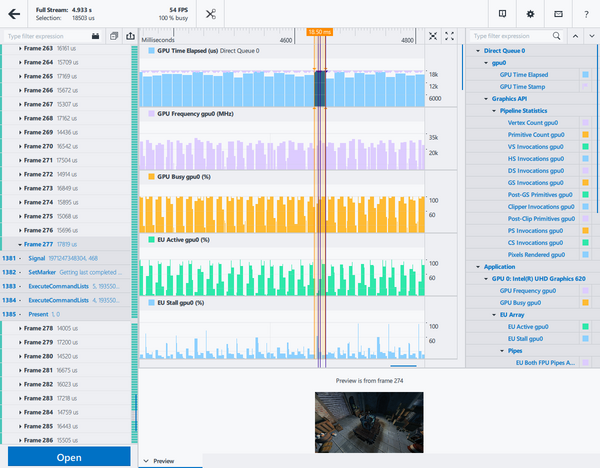
Choose a game scene or application task that reproduces the issue. Keep the resolution, graphics preset, background apps, and test duration consistent. Record average FPS and frame-time behaviour, then monitor GPU utilisation, CPU activity per core, clocks, temperatures, memory use, and power behaviour where available.
Use a reputable monitoring tool and avoid running multiple overlapping overlays if they affect performance. Repeat the test so that one unusual run does not determine the purchase decision.
2. Signs the GPU may be limiting performance
A GPU that stays heavily loaded during the demanding part of a game, while performance remains below your target, is evidence that graphics processing may be the main limit. It is not conclusive on its own; verify with a controlled settings change and consistent testing.
- Lower the output resolution or a GPU-heavy graphics setting.
- Keep the scene and other settings the same.
- Compare FPS, frame times, GPU load, and image quality.
- If performance improves substantially, the GPU or graphics workload may be a major factor.
Ray tracing, high-resolution textures, complex effects, and a higher pixel count can increase GPU workload. The actual effect depends on the game and settings.
3. Signs the CPU may be limiting performance
A CPU limit can appear when the game needs more processing than the CPU can deliver, even if total CPU usage looks moderate. Games may depend heavily on one or a few threads, so total CPU utilisation is not enough to diagnose the problem.
Compare performance at different resolutions using the same scene. If lowering resolution has little effect on FPS while the GPU is not fully occupied, a CPU-side or other non-GPU limit may be involved. Also check frame caps, background tasks, simulation settings, and game-specific behaviour before deciding that the CPU needs replacement.
4. Check RAM pressure
Monitor memory use while running the actual game and background applications. If the system is running short of available memory and responsiveness deteriorates, a capacity or configuration upgrade may help. If memory usage is comfortably within capacity, adding more RAM may not solve the problem.
Remember that system RAM and dedicated GPU VRAM are different resources. A GPU memory limit can cause different symptoms from a system memory limit, and adding system RAM does not substitute for sufficient GPU memory.
5. Check temperatures and clocks
High temperatures, power limits, or cooling problems can affect operating clocks. Compare temperatures and clocks during the same repeatable workload and check whether the component is behaving within the manufacturer’s guidance. Inspect dust, airflow, fan operation, and cooler mounting safely and follow the hardware manuals.
Do not assume a high temperature alone proves thermal throttling. Different CPUs and GPUs have different control behaviour and temperature limits. Look for the actual throttling indicators and clock changes, and compare them with official specifications.
6. Rule out software and settings
- Check whether a frame-rate cap, V-Sync setting, or driver-level limit is active.
- Test with unnecessary overlays and background tasks closed.
- Confirm that the game is using the intended GPU.
- Check for driver updates or known game-specific issues using official release notes.
- Consider shader compilation, asset loading, and network latency as different issues from raw rendering performance.
Low FPS and high ping are not the same problem. A network issue can make online play feel delayed even when local rendering performance is healthy; a GPU upgrade does not normally fix an internet connection problem.
7. Streaming and recording change the workload
If you record, stream, or run production software while gaming, test with those tools active. Encoding can use dedicated hardware, the CPU, or both depending on the software and settings. A system that performs well in a game alone may behave differently when recording or streaming at the same time.
Compare the same game scene with and without the extra workload, and check CPU/GPU utilisation, memory use, and frame times. Adjust one encoder setting at a time rather than buying hardware based on an untested assumption.
A practical diagnosis checklist
- Record CPU, GPU, RAM, storage, motherboard, PSU, resolution, and target frame rate.
- Reproduce the problem with a consistent scene or task.
- Record average FPS and frame-time behaviour.
- Monitor CPU activity per core, GPU load, clocks, temperatures, RAM, and VRAM use.
- Change one setting—such as resolution or a graphics option—and repeat the test.
- Check frame caps, background apps, drivers, cooling, and power behaviour.
- Only then compare the cost and expected benefit of a compatible upgrade.
Only after testing shows that the GPU is the limiting part should you compare a graphics card and PC component options in the Alfrensia store against your target resolution, frame rate, PSU and case clearance.
When should you upgrade?
Upgrade the GPU when credible evidence and benchmarks show that graphics processing is limiting your target workload. Consider the CPU when the task is processor-limited and a faster compatible processor delivers a useful improvement. Add RAM when capacity is the problem, and address cooling or software issues before replacing components that are working properly.
Before buying, confirm the exact card model, current price, stock, power requirements, dimensions and warranty. Product examples above are not universal recommendations.
Frequently asked questions
Is 100% GPU usage bad?
Not by itself. High GPU utilisation is common when a game is using the available graphics performance. Investigate only if it accompanies an issue you want to solve.
Can a bottleneck calculator choose my upgrade?
No. Use it only as rough context. Real diagnosis requires the actual workload, settings, and measured system behaviour.
Does low GPU usage mean my CPU is too weak?
Not necessarily. Frame caps, loading, software issues, memory limits, and other factors can also leave the GPU underused.
Will upgrading my GPU fix stuttering?
Only if the GPU is responsible for the stutter. Memory pressure, shader compilation, thermals, storage, drivers, and background processes can cause similar symptoms.
Sources and further reading
Results vary by hardware, game, software version, and settings. Use repeatable tests and official documentation before making an upgrade decision.
Need help choosing a compatible upgrade?
Share your CPU, GPU, RAM, power supply, case, monitor resolution, budget and the game you play with our sales team. We can help you compare compatible options without guessing which part is holding your PC back.
Chat with Alfrensia Sales on WhatsApp: 01030088261 · Browse the store · Follow Alfrensia
Related reading: GPU vs CPU Upgrade: Which Should You Upgrade First? · GPU VRAM Explained · RTX 5070 vs RTX 5070 Ti vs RTX 5090. Browse all PC Basics guides.
دليل تشخيص Bottleneck في الكمبيوتر
نقطة الاختناق بتعتمد على الحمل المستخدم؛ ممكن تكون CPU أو GPU أو الرام أو الحرارة أو إعدادات البرامج. قبل الترقية، اجمع قياسات قابلة للتكرار وقارن نفس اللعبة والدقة والإعدادات.
ليه مفيش نسبة اختناق واحدة تصلح للجميع؟
الأداء بيتغير حسب اللعبة والمشهد والدقة والإعدادات والبرامج الخلفية. أدوات الحساب المبسطة مش بديل عن القياس الفعلي.
1. اعمل خط أساس قابل للتكرار
اختار مشهداً ثابتاً وسجّل FPS والـframe times واستخدام CPU وGPU والحرارة والتردد واستهلاك الرام.
2. علامات إن GPU ممكن يكون المحدِّد
لو كارت الشاشة عليه حمل مرتفع في مشاهد صعبة والأداء أقل من هدفك، فقد يكون هو المحدِّد. جرّب خفض الدقة أو المؤثرات كاختبار.
3. علامات إن CPU ممكن يكون المحدِّد
بعض الألعاب تعتمد على نواة أو أكثر بشكل كبير. راقب استخدام الأنوية وسلوك الأداء عند خفض إعدادات الرسوميات.
4. افحص ضغط الرام
راقب الاستخدام والذاكرة المتاحة ونشاط التخزين. امتلاء الذاكرة ممكن يسبب تقطيعاً، لكن لا تفترض إن زيادة الرام ستحل كل مشكلة.
5. راجع الحرارة والتردد
ارتفاع الحرارة أو حدود الطاقة قد يخفض التردد. قارن السلوك أثناء حمل ثابت وتأكد من سلامة التبريد.
6. استبعد البرامج والإعدادات
راجع حدود FPS والـV-Sync والـoverlays والتعريفات والمهام الخلفية وإعدادات اللعبة.
7. البث والتسجيل بيغيروا الحمل
لو بتعمل streaming أو recording، اختبر اللعبة مع البرامج دي شغالة لأن الترميز والمهام الإضافية بتغير استخدام الموارد.
قائمة تشخيص عملية
- كرر نفس الاختبار.
- سجّل المؤشرات الأساسية.
- غيّر إعداداً واحداً في كل مرة.
- افحص الحرارة والرام والبرامج الخلفية.
- قارن النتائج قبل شراء أي قطعة.
إمتى ترقي؟
لما القياسات توضح إن مكوّناً بعينه بيمنعك من تحقيق هدف واضح، وتكون الترقية متوافقة وتكلفتها منطقية.
الأسئلة الشائعة
هل استخدام GPU بنسبة 100% سيئ؟
مش بالضرورة؛ قد يعني إن الكارت بيشتغل بكامل طاقته. راجع الحرارة والأداء المتوقع.
هل Bottleneck Calculator يختار الترقية؟
لأ؛ استخدمه كمؤشر عام فقط، واعتمد على القياس الفعلي.
هل انخفاض استخدام GPU يعني إن CPU ضعيف؟
مش دائماً؛ قد يكون بسبب حد FPS أو تحميل أو قيود برنامج أو عوامل أخرى.
هل ترقية GPU هتحل التقطيع؟
مش لو السبب رام أو حرارة أو تخزين أو برامج أو CPU. شخّص السبب أولاً.
مصادر رسمية وقراءة إضافية
- Intel — تشخيص انخفاض FPS.
- NVIDIA — تقنيات DLSS المدعومة.
- AMD Software: Adrenalin Edition للتعريفات وإعدادات الرسوميات المدعومة.
قارن نفس المشهد والإعدادات وسجّل القياسات قبل اتخاذ قرار الترقية؛ انخفاض FPS أو التقطيع وحده لا يحدد السبب.
محتاج تحدد أنهي قطعة محتاجة ترقية؟
محتاج مساعدة تختار ترقية متوافقة مع جهازك؟
ابعت لفريق المبيعات المعالج وكارت الشاشة والرام والباور والكيسة ودقة الشاشة والميزانية واللعبة اللي بتلعبها. هنساعدك تقارن الاختيارات المتوافقة بدل ما تغيّر قطعة من غير ما تتأكد إنها سبب المشكلة.
كلم فريق المبيعات على واتساب: 01030088261 · تصفّح متجر المؤسسة الفرنسية للكمبيوتر · تابعنا على السوشيال ميديا
مقالات مرتبطة: ترقية GPU ولا CPU: أبدأ بأنهي قطعة؟ · شرح VRAM: محتاج ذاكرة كارت شاشة قد إيه؟ · مقارنة RTX 5070 وRTX 5070 Ti وRTX 5090. وشوف كمان أدلة أساسيات الكمبيوتر.